Skip to content Skip to main navigation Skip to footer

All Tutorials

Weebly website down

Weebly Website Not Working? Check this Ultimate Troubleshooting Guide

If your Weebly website is down, there’s no need to panic. This troubleshoot guide is made available to figure out what’s going on. You’ll definitely be able to get the website up and running as it should be.

Before moving forward with this post, you may want to double check to make sure if your website is working and not a cache issue from your end: How to check if your Weebly website is working worldwide.


Weebly Website is Down? Here’s What May Have Gone Wrong

First of all, make sure the actual Weebly website is created and published and it’s ready to be online. If website is unpublished, you’ll be seeing a 404 error.

Weebly Down for Unexpected Maintenance

If you ever come across that error, be reassured that it’s temporary and your website will be back shortly. We have a dedicated article that explains this in detail. Check it out: Weebly Down for Unexpected Maintenance.

Website still down? Not a problem. Let’s figure out what’s going on. The sections below are specific to the kind of address you’re using.

Weebly Website Down Using a Free Weebly Sub-Domain (like website.weebly.com)

Actually, the only real problem which will keep your Weebly subdomain from showing up online is if a typo or other mistake was made when setting up the address in Weebly. Double check your URL.

Weebly Website Not Working using a Customized Domain Purchased through Weebly

If your domain is registered through Weebly, there are very few problems that may prevent your website from being reachable.

404 error like this?

Weebly 404 error

This usually means the website is not published from the Weebly Site Dashboard. However, if you know you’ve published your Weebly website still not working, you can try a couple of different things: Hard refresh your browser and/or make sure there’s no typo in the typed URL.

Weebly Website Not Working using a Customized Domain Purchased Elsewhere

If your domain is registered through a different domain provider, there are very few problems that may prevent your website from being reachable.

Seeing something like this?

Domain expired

That means the registered domain is now expired. Make sure to renew it.

Something like this?
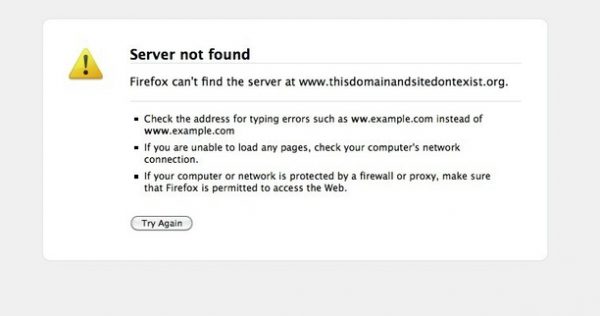
Domain not pointed

That error either means the domain isn’t properly pointed to Weebly or DNS propagation in progress and you’d just need to give it some time, usually a few hours. Here’s how to point your domain to Weebly.

If you liked this tutorial, then you may consider subscribing to our WeeblyTutorials YouTube Channel for Weebly video tutorials. You can also find us on Twitter and Facebook.

drawbacks of Weebly

7 Key Drawbacks of Weebly you Should Know

Weebly is one of the most used drag and drop website builder in the world. With millions of users, it is widely praised and appreciated for its advantages, especially when it comes to its easy of use.


But well, like any other website creation solution, it definitely has its own disadvantages. The drawbacks of Weebly may even lead you to reconsider using it for building and maintaining your website.

Well, we have already published a full Weebly review but we are here listing the 10 Key drawbacks of Weebly you should be aware of.

7 Key Drawbacks of Weebly

#1 Website Backup

Backup copies are very important for any website owner. One can restore the website at any previous date when anything goes wrong or for any other reason. Weebly does offer a website backup feature but it’s very limited. It allows downloading the whole website into a zipped file. The issue here is that the backed up website cannot be uploaded back into Weebly website.

It basically means you need to create the website from scratch in case anything goes wrong.

#2 Website Modifications

Non-coders may find it hard to imply extra customization to their websites. There isn’t enough flexibility to modify the theme’s files and the general structure.

#3 Weebly Blog Limitations

Weebly blog features aren’t that impressive comparing it with other solutions. Here are a few drawbacks:

  • You cannot copy a Weebly blog so it is difficult to migrate your blog content
  • Very basic comment control and management system
  • Latest 10 blog posts will be displayed automatically in one page

#4 Poor Page Management

Weebly offers a very basic tool for managing pages. If a website has a large number of pages, it is very difficult to arrange the navigation of them since they are currently arranged one below one.

#5 Migrating from Weebly

If you have a website elsewhere and you’d like to migrate it to Weebly, you won’t be able. Weebly doesn’t allow any file upload into its system. The same goes when one

#6 Weebly’s Terms of Services

It’s very important that you read and fully understand Weebly’s terms of services. It may clearly restrict the type of website you’re looking to host with them.

#7 Not Suitable for Huge websites

Weebly, pretty much like any other website builder, it’s not really suitable for large websites. It’s mainly designed to create small, professional informational websites.

Related: Step by Step Free Weebly PDF Tutorial ebook

If you liked this post, then you may consider subscribing to our WeeblyTutorials YouTube Channel for Weebly video tutorials. You can also find us on Twitter and Facebook.

what is a domain name

Beginner’s Guide: What is a Domain Name and How Does it Work?

If you’re just starting out, as a beginner, you may have heard that you need a domain to have a website.

Many people do confuse domains with websites or hosting plans etc. It’s quite normal that all these different terms may sound too technical.

Actually your domain name is your online identity, the one that represents your brand. The choice of a good domain name can highly contribute to the success of a new web project.


What is a Domain Name?

A domain name is the Internet address of your website. The one entered in the URL field of your browser. For example WeeblyTutorials.com. It is composed of a first part [WeeblyTutorials] which is the name of the site and another [.com] which is the extension.

How Domain Names Actually Work?

To understand things up quickly on how domains work, we will take a look at what happens when you enter it in your browser.

How domains work

When you enter a domain name in your web browser, it sends a request to the server where your website is hosted via the namesevers. The sever then sends the data back to the browser via the domain name.

Now that we understand the different parts of a domain name, let’s get to the business of how to pick out the best name. We have prepared a complete guide on that to help you choose and register the best domain name for your Weebly website.

Related: Step by Step Free Weebly PDF Tutorial ebook

If you liked this post, then you may consider subscribing to our WeeblyTutorials YouTube Channel for Weebly video tutorials. You can also find us on Twitter and Facebook.

add quiz in Weebly

How to Add a Quiz in Weebly

Ever wondered how to add a quiz in Weebly? A quiz us basically an online web form that collects visitor input, processes submitted values, and shows results.

Quizzes are a very useful way to increase visitor engagement. They can be used for several purposes including education and more.

Well, in this tutorial, we will show you how to easily insert a quiz in Weebly.


How to Add a Quiz in Weebly

In order to add quizzez in Weebly website, we will going to create a HTML quiz with any provider online such as Interact or GoToQuiz and then paste the generated HTML code into our Weebly website using the Embed Code Element from the Weebly Site Builder.

Let’s say you have already created the quiz and generated the HTML code, you’d just then need to follow below steps so you add that to your website.

  1. Inside the Weebly Site Editor click “Embed Code”. This will add an HTML box onto your Weebly website where the quiz will be displayed.
  2. Click “Edit Custom HTML”. This will open up a box you can add the quiz embed code into.
  3. Copy your embed code from Interact, GoToQuiz or any other provider that allows creating HTML quizzez.
  4. Paste in and you’re done

Add a quiz to Weebly

We hope this article helped you learn how to insert quizzez in Weebly websites. You may also want to see our guide on How to Add Proper Spaces in a Weebly Website.

If you liked this tutorial, then you may consider subscribing to our WeeblyTutorials YouTube Channel for Weebly video tutorials. You can also find us on Twitter and Facebook.

Weebly Spacer Element

How to Add Proper Spaces in a Weebly Website

This article sheds the light on two of the most important Weebly elements. The Spacer element and divider element. The main purpose of this post is to help you understand how to have and keep consistent spacing across your Weebly website.


Weebly Spacer Element

Well, there is a Weebly element specifically designed for adding spaces in between contents, and that is called the SPACER element.

The spacer element is quite a good tool as it allows you to add spaces but it’s not that recommended. Here’s why, the element itself makes it not that easy to have a consistent spacing. The reason for this is that you have to drag the spacer element up and down to decrease or increase the height of the spaces which makes it quite difficult to even impossible to have the very exact same height each time you drag and drop the element.

Add Proper Spaces

Weebly Divider Element

Here’s the trick to get a perfect spaces and general website structure, it’s to use the spacer element for adding spaces and the divider element for adding a horizontal divider. That’s how you’ll acheive the best results.

Don’t miss: How to Add Different Types of Elements in Weebly

With the divider element, you click the plus or minus buttons from the element options box in order to add or reduce its height. This way, you can set a consistent height for all the divider element you use across your Weebly website.

Weebly Divider element

If you liked this tutorial, then you may consider subscribing to our WeeblyTutorials YouTube Channel for Weebly video tutorials. You can also find us on Twitter and Facebook.

Use RSS feed with Weebly

Weebly RSS feed — How to Use RSS with Weebly

Browsing online, you may have come across an orange icon labeled RSS feed. If you have ever wondered what is a RSS feed and how you can use RSS with your Weebly website, then you’re in the right place. In this tutorial, we will explain what is RSS, what are the advantages of RSS, and how to add and use it with your Weebly website.


What is RSS

RSS stands for “Really Simple Syndication“. It is a set of data formats used for web content syndication. An RSS feed is a web resource whose content is usually generated automatically, based on updates in a specific website. RSS feeds are often used by news sites and blogs to present the articles of the latest information available online.

What Are the Benefits of Using RSS

It is a simple and convenient way to be constantly alerted about a website content that interests you. The feeds update automatically and permanently, without you having to connect to your favorite information websites.

It simply makes it easy for anyone to subscribe to your content.

How Does the RSS Feed Work

RSS feeds work by publishing your latest website’s content in a XML file. This XML file can then be fetched and read by a RSS feed reader. There are several RSS feed reader software available out there for all kind of devices.

How to Add and Use RSS Feed with Weebly

You can actually add and use a RSS feed reader into your Weebly website with just a few simple steps.

  1. Login to your Weebly Site Editor
  2. From the More category of the Build sidebar, drag and drop the Feed Reader element to use it. You can click on the element to customize the feed URL.

You may also consider adding a RSS feed using a Weebly App such as News RSS Feed but that’s not advised since Weebly has a free, built-in feature for that. Why would we pay for it?

If you liked this article, then you may consider subscribing to our WeeblyTutorials YouTube Channel for Weebly video tutorials. You can also find us on Twitter and Facebook.

Google Ads Weebly

How to Add Google AdSense to a Weebly Website

As you may know, Google Adsense helps you generate revenue from your website by automatically showing some ads targeted to your website content.


In this article, we’ll take a look at Google AdSense and how to add it to your Weebly website. Weebly does not take any cut from the revenue generated.

Google Ads display isn’t possible on free Weebly websites. You’ll need to upgrade to at least a Starter plan or above.

Add Google AdSense to Weebly

In order to use Google adsense on your website, you’ll obviously need either to apply for a new AdSense account or use your existing AdSense account credentials.

Displaying Weebly AdSense Ads

You can place Google ads in your Weebly website’s pages using AdSense element.

If you liked this article, then you may consider subscribing to our WeeblyTutorials YouTube Channel for Weebly video tutorials. You can also find us on Twitter and Facebook.

best weebly apps

Ultimate Hand-Picked List of the Best Weebly Apps for 2021

With hundreds if not thousands of Weebly Apps available out there, it’s quite hard for Weebly users to find the best Weebly Apps for their websites.

Well, in this article, we have picked the best Weebly Apps for 2021.

Head out to following tutorial if you are not sure how to install a Weebly Apps.


Ultimate Hand-Picked Weebly Apps for 2021

Best eCommerce Weebly Apps

Donorbox

Best eCommerce Weebly Apps

Accept recurring donations effectively on your Weebly website.

Price Chart

Best eCommerce Weebly Apps

Build amazing custom pricing tables in Weebly.

Payment Button

Best eCommerce Weebly Apps

The easiest way ever to accept payments and donation amounts through your Weebly website.

Digital Downloads

Best eCommerce Weebly Apps

Sell digital downloads easily with Weebly.

Best Communication Weebly Apps

LiveChat Live Chat

Best Communication Weebly Apps

Live chat for your Weebly website for customer service and sales

Easy Contact Form

Best Communication Weebly Apps

Add responsive contact forms for your Weebly website. You have the ability to add a beautiful background image also.

Multilanguage

Best Communication Weebly Apps

Multiple languages in the same Weebly website

Bablic Translation

Best Communication Weebly Apps

Translate your Weebly website in minutes.

Best Marketing Weebly Apps

Privy

Best Marketing Weebly Apps

This app allows you to grow your email list in your Weebly website with high converting pop-ups, spin to win, and offers with coupon codes

Easy Web to App

Best Marketing Weebly Apps

Convert your Weebly website to a Mobile App.

Job Board

Best Marketing Weebly Apps

Post jobs and hire fast through your Weebly website.

Best Social Weebly Apps

Comments Plus +

Best Social Weebly Apps

Perfect way to engage with your visitors.

Social Sharing

Best Social Weebly Apps

Get more social shares and followers for your Weebly website.

Easy Testimonial

Best Social Weebly Apps

Allow your clients to promote you.

Best Weebly Apps for Extra Features & Tools

X

Best Weebly Apps for Extra Features & Tools

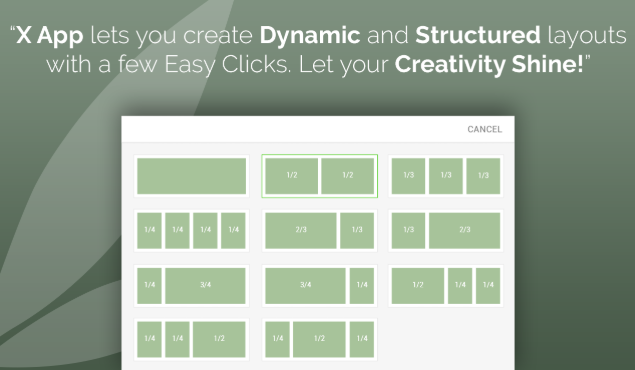
X Weebly App allows you to create dynamic & structured layouts within minutes

Countdown Cart

Best Weebly Apps for Extra Features & Tools

Create product urgency and scarcity

1 Pager

Best Weebly Apps for Extra Features & Tools

Create one page Weebly website.

Appointedd

Best Weebly Apps for Extra Features & Tools

Ultimate online booking app for Weebly websites.

Related: How Many Weebly Apps Should you Install on your Website?

If you liked this article, then you may consider subscribing to our WeeblyTutorials YouTube Channel for Weebly video tutorials. You can also find us on Twitter and Facebook.

add tables in Weebly

Beginner’s Guide: How to Add Tables in Weebly

Do you need to organize information on your website in a tabular format? You may need a quick way to organize and display certain data, whether it’s product information, survey results, an online calendar, or other content may be better represented in a table integrated into your Weebly website.

Well, this tutorial shows different ways on how to add tables in Weebly websites.

How to Add Tables in Weebly


Here are the methods that we’re going to discuss in this article:

  • HTML Method to Add Tables in Weebly
  • Using Microsoft Word to Add tables in Weebly
  • Using free Simple Table App from Weebly App Center
  • Add Tables to Weebly with Google Spreadsheet
  • Embedding table code from other third parties

HTML Method to Add Tables in Weebly

Creating HTML tables is one of the easiest ways to create tables and then have them added into your Weebly website using the “Weebly Embed Code” element.

Using Microsoft Word to Add Tables in Weebly

We’re explaining here the Microsoft Word method to add a table in Weebly. Follow the below instructions to create a table using Microsoft Word:

  • Launch Microsoft Word.
  • Click on “Insert” and then “Table” to select the number of rows and columns of your table.
  • Once done, click any cell to have the menu “Table Tools” showing up.
  • Hit the “Table Tools” option so you can customize your table.
  • Once you finished up working on your table, you can save the MS document as a webpage (*.htm or *.html)
  • Open the saved MS document with any text-editor like NotePadd++ or NotePadd++ (Right Click and Open with Notepad) and copy the code.
  • Use Weebly Embed code element to paste the code on your website.

Using the Simple Table App from Weebly App Center

This method uses the Simple Table App from Weebly App Center. You need to access the Weebly App Center and connect the free “Simple Table” app available under “Tools” category of your Weebly Site Editor, then drag and drop the element to add tables to your website. It’s simple and you’ll be able to customize everything with this app.

Add Tables in Weebly

Add Tables to Weebly with Google Spreadsheet

Google Spreadsheet could be a very useful solution to add a table in Weebly. You can create the table from within your Google account then embed the code on your Weebly website to share the table.

Online Table Generators

Creating table with HTML is simple, but it’s very time-consuming if we’re planning on create bigger size tables. For that, you can use any kind of online table generators. They will help to create the tables and generate the needed HTML code to copy/paste it via the “Weebly Embed Code” element.

If you liked this tutorial, then you may consider subscribing to our WeeblyTutorials YouTube Channel for Weebly video tutorials. You can also find us on Twitter and Facebook.

give access to your Weebly

Give Access to your Weebly Website Without Sharing Login Details

Do you want to give access to your Weebly website? If yes, you’ll probably want to do that without sharing your log-in details with them. Which is totally normal to be careful. Remember, sharing full login access means the ability to DELETE the whole website or make other irreversible changes.


How to Give Access to Weebly Without Sharing the Login Details?

Well, Weebly actually has a built-in option that allows you to give someone an editor access to your website without sharing your full login details.

An editor access provides the person you’re sharing access with to the Weebly website editor, only. That means the person in object won’t be able to access your weebly account dashboard where your account information is located.

Well, to grant editor access to your Weebly website, follow these steps:

  1. Log into your Weebly Site Editor.
  2. Click settings, on the sidebar (left), click Editors. Click Add Editor.
  3. Write down the email address of the person you want to give access to.
  4. You can select permissions you’re going to give.
  5. Save changes
Give Access to Weebly

Once done, Weebly will send an email with a login details and link to the email address you entered.