Skip to content Skip to main navigation Skip to footer

All Tutorials

Weebly essentials

15 Helpful Weebly Tutorials Everyone Can Benefit From

Weebly is a do-it-yourself online website builder, point blank. That been said, the website builder allows to build fully functional websites in a very easy way.


Here at WeeblyTutorials.com, we thought we’d compile a list of some of the most essentials Weebly tutorials you should be leveraging in your business’ online strategy. All of these tutorials would make your journey building your website with Weebly an easier one.

You’ll find below the 20 must-knows Weebly tutorials any website owner could benefit from.

#1. How to use the Weebly Site Editor

Starting with the Weebly Site Editor. Well, it’s where all of the magic happens: where you’ll add content, design your pages, and customize everything until you are happy with the final results.

This tutorial explains how to use the actually Weebly Site Editor.

#2. How to display images on your Weebly website

It’s not surprising, one of the most common tutorials people look for is how to display images on their websites. While there is usually more than one way to add images in a Weebly website, we’re going to keep it as simple as possible.

#3. How to optimize your Weebly website’s SEO

There no point to create an amazing website when no one can find it. This is why we made available this step by step article on the top 5 easy SEO tips to boost your Weebly website in under an hour.

#4. How to become mobile friendly

It should be no surprise to anyone that browsing the Internet on mobile is a preferred practice to traditional desktop browsing nowadays. Website owners need to make sure that their websites are mobile friendly. Here’s how to turn on the mobile version in Weebly.

#5. How to create a multilingual site with Weebly

Creating a multilingual website with Weebly is much easier than you think. We’ve made it even easier by providing you with the perfect tutorial to get your feet wet and say Hello in so many languages.

#6. How to get a personalized domain for your Weebly website

If you spent quite some time working on the perfect website for your online presence, you should do yourself a favor and have it linked to a personalized domain name. A personalized domain definitely enhances your website’s credibility, boasts a sense of professionalism and helps improving your website overall SEO performance. Well, here’s how to choose the best domain name. We’ve even gone further and made a separate article on how you can easily point any domain to your Weebly website as well.

07. How to create personalized email addresses

Visitors, perhaps new clients will want to get in touch with you after they’ve visited your website. It would be extremely useful and professional to provide them with a personalized email address, means an email that’s linked with your domain name. That actually shows that you’re a well-established brand. Plus, it just looks way better than any other free email provider.

#8. How to use anchors on Weebly

Anchors are sort of links that are very useful to direct your visitors to certain sections of your website. It’s a simple and very engaging way to enhance user experience. Here’s how to create anchor links on Weebly.

#9. How to add apps from the Weebly App Store

The Weebly Editor is already full of features, but sometime you may be looking to extend its functionality in ways that aren’t built-in. This is where the use of Weebly Apps Market comes in.

#10. How to add videos to your Weebly website

Looking to add videos to your Weebly website? Look no further! Weebly allows you to embed any kind of video very easily. Related Read: How to Add Video Streaming in Weebly Website

#11. How to make your Weebly website social friendly

Social platforms have taken over the Internet in more ways than we can describe. The following tutorial explains how to add any sort of social media icons so you can turn your website into a more social-friendly one.

#12. How to embed HTML, CSS or Javascript on your Weebly website

You may want to insert a customized code into your Weebly website. Either to add any extra feature or to simply embed a Javascript code provided by a provider such as Google for analytics purposes for example.

#13. Create Email Newsletter with the Weebly Email Marketing Solution: Weebly Promote

Weebly Promote allows to send beautiful, targeted newsletters to all your contacts in just a few clicks. This would allow you to keep your clients up to date and provide them with regular updates via email.

How to Add Favicon to Weebly Website

A favicon is your website logo that appears next to the meta title on your browser tab. Ever wondered how to add it to your Weebly website? You can get your hands wet now.

How to Add an Image Gallery in Weebly website

An image gallery lets you add images in rows and columns. This allows you to display more photos in less space while also making it easier for visitors to browse them.

If you liked these helpful Weebly tutorials, you may consider subscribing to our WeeblyTutorials YouTube Channel for Weebly video tutorials. You can also find us on Twitter and Facebook.

weebly vs squarespace

Weebly vs Squarespace — Which one to Choose? (2021)

Weebly vs Squarespace. Which one to choose and use? What are the main differences between Weebly and Squarespace?

Well, this Weebly vs Squarespace in-depth comparison sheds the light on the main differences between these two website buidlers.


Weebly vs Squarespace

If you are looking for a good website builder to start just any type of website, you might be interested in using Weebly or Squarespace.

A simple look at the samples of websites built with these two website builders gives the idea of how amazing these web building solutions are.

It’s quite difficult to define the best platform for you from the start and that’s exactly why this comparison article will come in handy to people looking for good web building solutions.

weebly vs squarespace

Weebly Squarespace
Summary
Weebly is an outstanding web builder. It can be used to create just any types of websites. It was founded in 2006, the web builder has gained worldwide recognition due to its advanced customization tools, powerful feature set and flexibility. Squarespace is one of the most convenient website builders. It’s mostly used by artists and photographers as it oriented for the needs of ceatives. It also comes with rich features allow to cover the needs of different website types.
Ease of Use
Weebly makes website building very easy. No technical knowledge is required. The platform comes with a simple and user-friendly interface that does not imply deep learning curve. Squarespace has aquired the enhanced usability in terms of editing options.
Flexibility
Being initially developed as the all-in-one web solution creator, it has gained a strong eCommerce focus. This happened after the acquisition of Weebly by Square. Squarespace website builder is full-featured, flexible and encouraging for non tech-savvy people.It has all the needed features to build fully functional websites. The thing is that doesn’t offer apps or other tools provided by third-party designers

If you’d like to know more about Weebly, you may want to check out our full Weebly review here.

Related Read: Weebly vs Shopify — Which one is Better for your Needs?

If you liked this in-depth Weebly vs WordPress comparison, then you may consider subscribing to our WeeblyTutorials YouTube Channel for Weebly video tutorials. You can also find us on Twitter and Facebook.

Shopify VS Weebly

Weebly vs Shopify — Which one is Better for your Needs? (2021)

This article provides you with a comparison of two popular website builders: Weebly vs Shopify. Both Weebly and Shopify are well-known drag-and-drop website builders with the ability to build fully functional online stores.


Weebly vs Shopify: What is the Differences?

Weebly is a drag-and-drop website builder that allows to create fully functional different types of websites.

Shopify, on the other hand, is a website builder solution dedicated especially for eCommerce use.

That been said, it’s designed to help you build your own online store. It has everything you need to run your business.

Shopify vs Weebly: Pros and Cons

Shopify Pros

Shopify Pros

Shopify Cons

Shopify Cons

Weebly Pros

Weebly Pros

Weebly Cons

If you’d like to know more about Weebly, you may want to check out our full Weebly review here.

Suggested Read: Weebly vs Blogger — Key Differences You Should Know.

If you liked this in-depth Weebly vs WordPress comparison, then you may consider subscribing to our WeeblyTutorials YouTube Channel for Weebly video tutorials. You can also find us on Twitter and Facebook.

Weebly vs Blogger

Weebly vs Blogger — Key Differences You Should Know (2021)

Weebly vs Blogger, which one is better? Well, we have made available this Weebly vs Blogger comparison to shed the light on the key differences between these two web creation solutions.


Weebly vs Blogger

Weebly Blogger
Summary
Weebly is a free website builder designed to build websites using a drag-and-drop interface. Though you can use Weebly to create your blog, you should know that it’s more a competitor of Wix.com or WordPress than of Blogger. It was founded in 2003 and then acquired by Google, Blogger is one of the oldest blog-publishing solutions. People appreciate the easy-to-use administrative back-end, simple design, and plenty of customization features to create a blog that fits a small business blog style.
Ease of Use
Weebly is extremely easy to use. No technical knowledge is required. You can build a fully functional blog via its drag and drop interface. Blogger is also an easy to use web solution to creating blogs but it does require a bit of technical knowledge. You’ll be required to choose your own template and activate plugins that may add some advanceed features.
Flexibility
Weebly does allow to edit the code of some sections in its website editor but it’s still not an open source platform so you can’t control how some of the features work. Blogger is based on WordPress. It’s an open source solution so you’ll have a lot of freedom to modify your blog and how the built-in features work.


If you’d like to know more about Weebly, you may want to check out our full Weebly review here.

Suggested Read: Weebly vs Wix — 10 Differences You Should Know About.

If you liked this in-depth Weebly vs WordPress comparison, then you may consider subscribing to our WeeblyTutorials YouTube Channel for Weebly video tutorials. You can also find us on Twitter and Facebook.
Weebly Email Marketing

Weebly Email Marketing Solution: Weebly Promote

Email marketing solutions allow to send targeted newsletters to all your clients. This would easily allow you to connect with your clients and keep them engaged, or attract new clients through new email campaigns.


Well, for this, Weebly has an amazing feature called Weebly Promote. The provided Weebly email marketing solution allows to send beautiful, targeted newsletters to all your contacts in just a few clicks.

Weebly Email Marketing Solution: Weebly Promote Features

Create Email Campaigns. Reach out to your clients and prospects with just a few clicks. Send and/or schedule your email campaigns, check their impact and easily integrate with social media platform.

Send Beautifully Designed Emails. Weebly Promote allows to use its pre-designed email templates or to create your own with its simple design tool.

Weebly Promote

Manage your Email Lists. Weebly Promote allows you to easily integrate subscription forms into your existing Weebly website to collect new emails.

Performance, Reporting, and Managed Deliverability. Weebly Promote takes care of your email reputations so they always get into inboxes, and not junk folders. Track your campaign’s success and dive into details like who opened, clicked or unsubscribed.

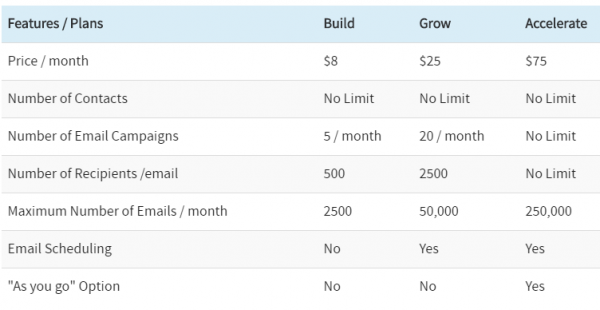
Weebly Email Marketing Solution: Weebly Promote Pricing

Prices are subject to change by Weebly at anytime.

Weebly Promote Pricing

Weebly Promote: How to Use It?

Weebly Promote can be accessed with the following URL: Weebly Promote.

Before sending your first newsletter, you must have at least one contact list. To create a new contact list, click on the Contact button.

Adding Contacts in Weebly Promote

Choose whatever option you’d like to add your contacts.

Weebly Promote Platform

Creating an Email Campaign

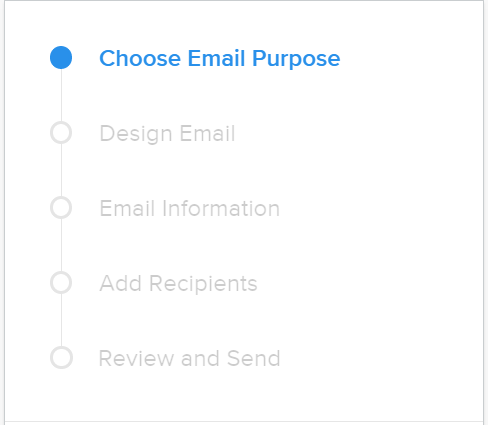
Once your list is ready, you can begin creating your campaign! Click on the “Compose” button and follow the step by process to create an email campaign

Sending compaigns

You have five sections to go through:

  1. Choose Email Purpose
  2. Design Email
  3. Email Information
  4. Add Recipients
  5. Review and Send

Monitoring Performance

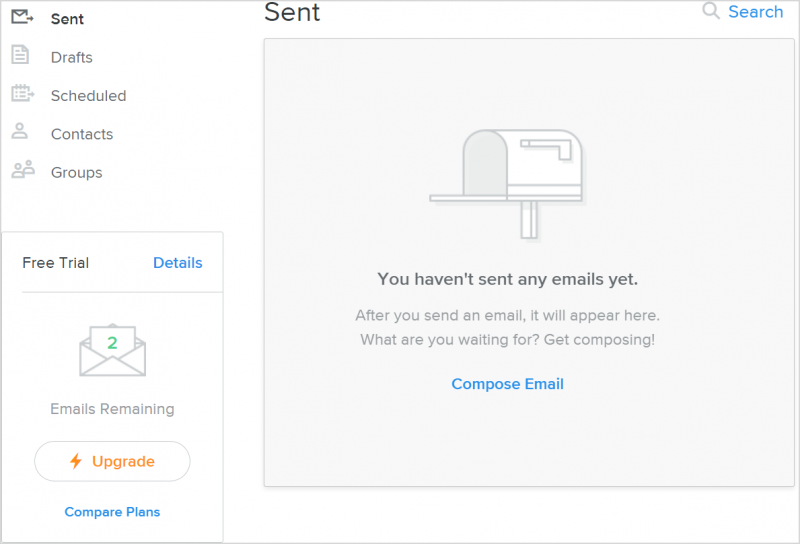
Once a campaign is sent to the desired contact list, the performance of the campaign can be checked under “Sent” tab.

Suggested Read: Add a Newsletter Signup Form to your Weebly Website

If you liked this in-depth Weebly vs WordPress comparison, then you may consider subscribing to our WeeblyTutorials YouTube Channel for Weebly video tutorials. You can also find us on Twitter and Facebook.

Bootstrap in Weebly

Adding Bootstrap in Weebly

This tutorial explains how to use Bootstrap in Weebly. Bootstrap is a free open source framework to build responsive layouts using HTML, CSS and JavaScript. Learn more about Bootstrap via its documentation.
The complete CSS and JavaScript for Bootstrap framework can be downloaded from getbootstrap.com website.

How to Use Bootstrap in Weebly

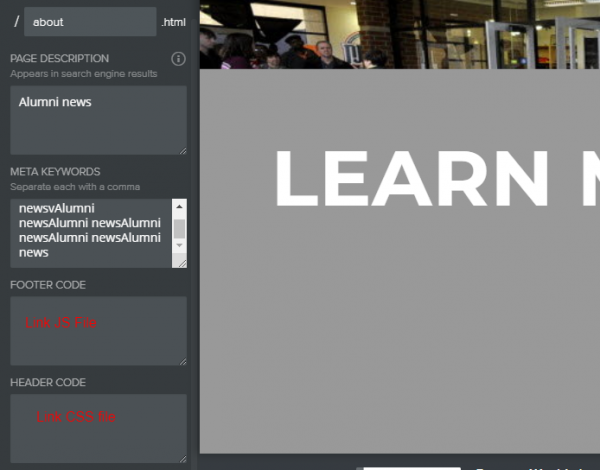
It is quite difficult to use the whole Bootstrap resources as it is with Weebly. It may disturb the existing Weebly theme and results in breaking the website. What it is possible is to use the CSS and JavaScript links at header and footer section of a particular page so that it is easy for you to check the page instead of the whole website for troubleshooting. The JavaScript is to be linked in footer code section and the CSS is to be linked header code section of a Weebly page or at website level. Bootstrap in Weebly Now, using Bootstrap needs a some CSS knowledge and it is very easy to get particular element’s style and apply it on your website. Let us take an example of notification boxes. Bootstrap does offer lot of styling to create such boxes but you may just need to copy the following classes.
<style>
.alert {
padding: 15px;
margin-bottom: 20px;
border: 1px solid transparent;
border-radius: 5px;
}
.alert-success {
background-color: #dff0d8;
border-color: #d6e9c6;
color: #3c763d;
}
.alert-info {
background-color: #d9edf7;
border-color: #bce8f1;
color: #31708f;
}
.alert-warning {
background-color: #fcf8e3;
border-color: #faebcc;
color: #8a6d3b;
}
.alert-danger {
background-color: #f2dede;
border-color: #ebccd1;
color: #a94442;
}
</style>
Paste the CSS code on the header section of your Weebly page or add it in the main stylesheet to be effective at website level. Drag and drop the “Embed Code” element and add the following HTML.
<div class=”alert alert-success”>This is a success box to display any success message to your users!!! </div> <div class=”alert alert-info”>This is a information box to display any information message to your users!!! </div> <div class=”alert alert-warning”>This is a warning box to display any warning message to your users!!! </div> <div class=”alert alert-danger”>This is a danger box to display any error message to your users!!! </div>
It will look like below on your Weebly website
[fusion_code]PGRpdiBjbGFzcz0iYWxlcnQgYWxlcnQtc3VjY2VzcyI+VGhpcyBpcyBhIHN1Y2Nlc3MgYm94IHRvIGRpc3BsYXkgYW55IHN1Y2Nlc3MgbWVzc2FnZSB0byB5b3VyIHVzZXJzISEhCjwvZGl2Pgo8ZGl2IGNsYXNzPSJhbGVydCBhbGVydC1pbmZvIj5UaGlzIGlzIGEgaW5mb3JtYXRpb24gYm94IHRvIGRpc3BsYXkgYW55IGluZm9ybWF0aW9uIG1lc3NhZ2UgdG8geW91ciB1c2VycyEhIQo8L2Rpdj4KPGRpdiBjbGFzcz0iYWxlcnQgYWxlcnQtd2FybmluZyI+VGhpcyBpcyBhIHdhcm5pbmcgYm94IHRvIGRpc3BsYXkgYW55IHdhcm5pbmcgbWVzc2FnZSB0byB5b3VyIHVzZXJzISEhCjwvZGl2Pgo8ZGl2IGNsYXNzPSJhbGVydCBhbGVydC1kYW5nZXIiPlRoaXMgaXMgYSBkYW5nZXIgYm94IHRvIGRpc3BsYXkgYW55IGVycm9yIG1lc3NhZ2UgdG8geW91ciB1c2VycyEhIQo8L2Rpdj4=[/fusion_code]
If you liked this tutorial, then you may consider subscribing to our WeeblyTutorials YouTube Channel for Weebly video tutorials. You can also find us on Twitter and Facebook.

Weebly button

How to Add Buttons in Weebly

There’s actually a Weebly element called “Buttons”. It’s definitely one of the most important elements. For instance, anyone can add a button requesting visitors to download a Word document. It’s sometimes common when you can like the whole theme but the button on that theme may have an ugly style. In such a scenario, it is easy to replace the default Weebly button element’s style with your own custom CSS or with other theme’s button style. Well, this article explains how to add buttons in Weebly.


How to Add Buttons in Weebly

Weebly has a ready-to-use drag and drop button element which can be customized into four different types. Button element is grouped under “structure” category of elements. By default users can add two styles of small buttons and two styles of large buttons.

Weebly Default Button

On all non-responsive themes Weebly uses images to create a button and on all responsive themes the style of the buttons is controlled under “main.less” file.

Once drag and dropped, click on the button on your content area to see the following customizing options:

  • Button Text – text to be displayed on the button.
  • Button Style – choose one of the four styles available.
  • Position – center, right or left alignment of button.
  • Link – add links to button text.
  • Spacing – adjust top and bottom margins.

Weebly Button Element Options

Responsive Vs Non-Responsive

Before trying to change the style of your buttons, check what type of theme you are currently using. There are three types of buttons used on Weebly themes:

  • CSS buttons on responsive themes – example theme Slick, Cento.
  • CSS buttons on non-responsive themes – example theme Cleancut.

Non-responsive themes with image buttons – here the button element uses image and the CSS just calls this image as a background, example theme is City.

Non-responsive themes with CSS buttons – themes like Cleancut uses complete CSS buttons without images though it is a non-responsive theme.

Responsive themes – all latest themes like Slick, Cento, Paper, etc. are completely responsive and the button element is generated from CSS code.

Case 1 – Adding Custom Button Images on Non-responsive Themes

The important feature of Weebly button element is its capability to adjust to the length of the text. The button will get auto adjusted according to the length of the text entered. This is achieved by splitting a button into two images.

Before going further, follow the below steps to understand where are the button images stored in a Weebly site.

  • Login to your Weebly account and choose the site for editing.
  • Navigate to “Theme” tab and click on the “Edit HTML / CSS” button.
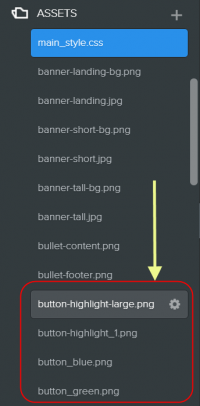
  • Under “Assets” section you will see different button images as shown below:

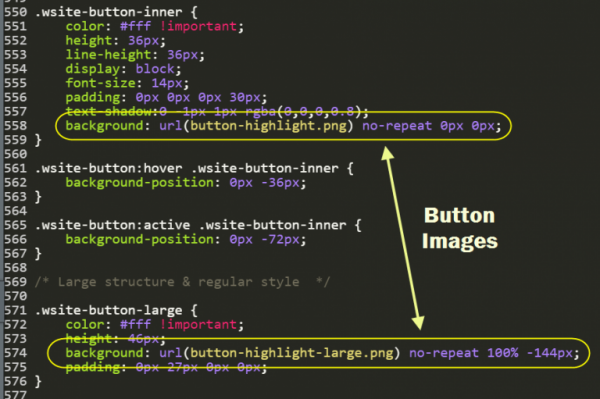
We noticed all non-responsive themes using images for buttons have 9 sets of images (total 18) for smaller and larger buttons but uses 2 specific images in CSS as a button’s background. Check “main_style.css” and find out what are the images used for buttons. The below example on City theme shows that “button-highlight.png” and “button-highlight-large.png” are used for smaller and larger buttons respectively.

Images-Used-for-Buttons-on-Non-Responsive-Themes-768x511

If you don’t like these buttons simply change the image to one of the available image from 9 sets. You an change “button-highlight.png” to “button-purple.png”. In case if you don’t like any of the existing button images then create your own custom images with similar sizes and split style and upload it under “Assets” section. Ensure to use the name of the image in “main_style.css” for the “background” property.

Case 2 – Customizing CSS Buttons on Non-Responsive Themes

If you do not find any button images under “Assets” section of your non-responsive theme then check the “main_style.css” to see the “Buttons” section. Below is the CSS code from Cleancut theme which can be customized background, colors, hover effect, etc. as you need.


/* Buttons
--------------------------------------------------------------------------------*/

/* Small structure & regular style */

.wsite-button {
background: red;
background: -moz-linear-gradient(top,#444 0,#333 100%);
background: -webkit-gradient(linear,left top,left bottom,color-stop(0,#444),color-stop(100%,#333));
background: -webkit-linear-gradient(top,#444 0,#333 100%);
background: -o-linear-gradient(top,#444 0,#333 100%);
background: -ms-linear-gradient(top,#444 0,#333 100%);
background: linear-gradient(top,#444 0,#333 100%);
border: 1px solid #000;
box-shadow:inset 0 0 15px rgba(0,0,0,0.25);
-moz-border-radius: 3px;
border-radius: 3px;
color: white !important;
font-size: 13px;
font-weight: 700;
padding: 3px 25px;
text-align: center;
text-decoration: none !important;
text-shadow: 0px -1px 1px rgba(0,0,0,0.7);
}

.wsite-button:hover {
background-position:0 0;
box-shadow:0 1px 4px rgba(0,0,0,0.3);
}

.wsite-button:active {
background-position:0 0;
}

.wsite-button-inner {
color: #fff !important;
padding:0;
background: none;
}

.wsite-button:hover .wsite-button-inner {
background:none;
}

.wsite-button:active {
padding:4px 25px 2px;
}

/* Large structure & regular style */

.wsite-button-large .wsite-button-inner {
font-size:14px;
padding:0;
}
.wsite-button-large .wsite-button-inner {
background: none;
}

/* Highlighted styles */

.wsite-button-highlight, .wsite-button-large.wsite-button-highlight {
background: #0370EA;
background: -moz-linear-gradient(top,#0370EA 0,#0370EA 100%);
background: -webkit-gradient(linear,left top,left bottom,color-stop(0,#0370EA),color-stop(100%,#0370EA));
background: -webkit-linear-gradient(top,#0370EA 0,#0370EA 100%);
background: -o-linear-gradient(top,#0370EA 0,#0370EA 100%);
background: -ms-linear-gradient(top,#0370EA 0,#0370EA 100%);
background: linear-gradient(top,#0370EA 0,#0370EA 100%);
border: 1px solid #0052ad;
box-shadow:inset 0 0 18px rgba(0,0,0,0.02);
}

.wsite-button-highlight:hover , .wsite-button-large.wsite-button-highlight:hover {
box-shadow:0 1px 4px rgba(0,0,0,0.3);
}

.wsite-button-highlight .wsite-button-inner {
background-image: none;
}

.wsite-button-large.wsite-button-highlight .wsite-button-inner {
background-image: none;
}

Now go back to the editor and drag the button element to the content area. You can see the button will be with the new style as you defined in “main.less“.

If you liked this tutorial, then you may consider subscribing to our WeeblyTutorials YouTube Channel for Weebly video tutorials. You can also find us on Twitter and Facebook.

Adding or Updating Weebly’s Store Information

This article explains how to add or update your Weebly’s store information.


Adding or Updating Weebly’s Store Information

To do so, you must first navigate to your Weebly site’s store editor.

  1. In the Add Store Information section, hit Add Information.
  2. For each of the following sections, hit the Edit button in the top right-hand corner and add or update the needed information.

Store Information

Weebly Store Information

Related: How to Add a Product Category to your Weebly Store

General

Weebly Store Information

Layout

Weebly Store Layout

Tracking

Tracking

The next step is to add products to your Weebly store. Here is how to add products in Weebly.

If you liked this tutorial, then you may consider subscribing to our WeeblyTutorials YouTube Channel for Weebly video tutorials. You can also find us on Twitter and Facebook.

Add products in Weebly store

How to Add Products in your Weebly Store

The actual tutorial explains how to add products to your Weebly Store. Adding products would allow you to have a fully functional Weebly store so you can start selling your items.


How to Add Products in your Weebly Store

To do so, you must first navigate to your Weebly site’s store editor.

  1. Click Items then click +Add Products.
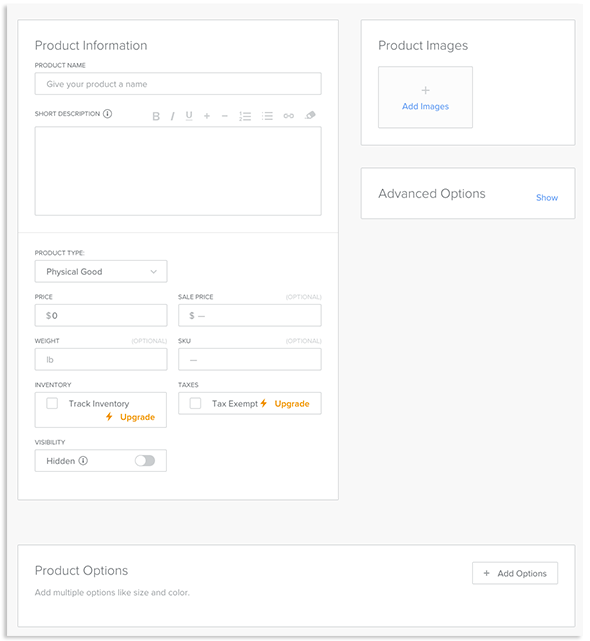
  2. Input information for your product.
    • Product Information: Enter general information about the product here.
    • Product Options: Click +Add Options to add options to the product.
    • Product Images: Click Add Images to upload a product image to go with the product.
    • Advanced Options: Click Show to display SEO options.

Add products in Weebly store

Related: How to Create an Online Store with Weebly

If you liked this tutorial, then you may consider subscribing to our WeeblyTutorials YouTube Channel for Weebly video tutorials. You can also find us on Twitter and Facebook.

Add category in Weebly

How to Add a Product Category to your Weebly Store

This tutorial shows how to add categories to your Weebly Store website. Adding categories for your products would allow you to better organize your Weebly store.


How to Add a Category in Weebly Store

To do so, you must first navigate to your Weebly site’s store editor.

  1. In the left sidebar, click Items.
  2. A drop-down under Products will appear. Click Categories Add category in Weebly
  3. In the right upper corner, click + Add Category
  4. Input information for your new category in the shown text fields such as image category etc.

Performing the listed above steps, you will be able to add a category in your Weebly store. You can add more categories by repeating this process.

Related: How to Create an Online Store with Weebly

If you liked this tutorial, then you may consider subscribing to our WeeblyTutorials YouTube Channel for Weebly video tutorials. You can also find us on Twitter and Facebook.