Skip to content Skip to main navigation Skip to footer

All Tutorials

backup a weebly theme

How to Backup a Weebly Theme

In this tutorial, we’re going to show you how to backup a Weebly theme. There are several reasons on why one would consider generating a backup copy of their website’s theme. For instance, it’s highly recommended to take a backup of your theme if you’re planning to customize it.


Taking backup copies is free, and takes a matter of seconds. It’s recommended to do it regularly so you won’t run into frustrations if something goes wrong.

Please refer to this article if you’re looking to backup your entire Weebly website: How to Backup Your Weebly Website

How to Backup/Export Weebly Themes

  1. Login to your Weebly Site Editor
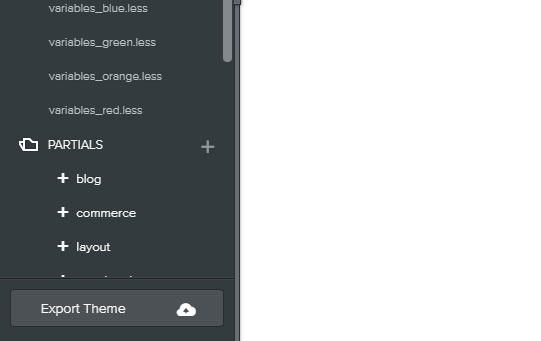
  2. Click on Themes > Edit HTML / CSS
Backup weebly themes
  • Click “Export Theme

The files will then be automatically downloaded.

Additional Reading

If you liked this post, then you may consider subscribing to our WeeblyTutorials YouTube Channel for Weebly video tutorials. You can also find us on Twitter and Facebook.

Add Weebly text boxes

How to Add Colored Text boxes in a Weebly Website

Weebly has already some built-in elements to add text content to your website. The provided elements are quite simple and there is no extra options for adding personalized text boxes. Well, this tutorial explains how to add colored text box in your Weebly website.


Add Colored Text boxes in a Weebly Website

We’re listing two simple ways of adding a colored text box in your Weebly website:

  • Via CSS Style
  • Via Embedded CSS Style

Here’s a live demo of a colored text box

Via Inline CSS

Inline CSS is used to style individual CSS elements. We will now style the paragraph element. The following code allows you to add a colored text box to your website:

<p align=justify style="background-color:#02f3e5;
border-radius:4px;
font-size:16px;
padding:15px;
margin:5px;"><b>
This is a Sample Textbox</b>
</p>

The color code can be hexadecimal like #808080 or use direct colors like “skyblue” or “grey”.

You need to use “the Weebly Embed Code element” and paste the code inside the element. The sample text boxes are shown below for various colors:

Sample Text box with background-color:#02f3e5

Sample Text box with background-color:pink

Sample Text box with background-color:lightblue

Via Embedded CSS Style

Here’s a code that you may copy and paste inside an embed code element to create a text box:

<p class="weeblytutorials_quote">
<em>
"Lorem ipsum dolor sit amet, consectetuer adipiscing elit, sed 
diam nonummy nibh euismod tincidunt ut laoreet dolore magna 
aliquam erat volutpat."
</em>
</p>
<style>
.weeblytutorials_quote {
    background: #c97e69 none repeat scroll 0 0;
    border-color: #808080;
    border-style: inset;
    border-width: 0px 0px 0px 15px;
    color: #ffffff;
    font-size: 20px;
    padding: 5px;
    font-family: monospace;
}
</style>

And here’s the result below

“Lorem ipsum dolor sit amet, consectetuer adipiscing elit, sed diam nonummy nibh euismod tincidunt ut laoreet dolore magna aliquam erat volutpat.”

Additional Reading

If you liked this post, then you may consider subscribing to our 
WeeblyTutorials YouTube Channel for Weebly video tutorials. You can also find us on Twitter and Facebook.

Weebly meta description

SEO Meta Description: Add Data to your Weebly Page When Shown in Google

If you’re looking to boost the over SEO for your website, you definitely need to add meta description to every page. The meta description is a short text that summarizes the content of a specific page. It’s displayed on the search engine results page right below the headline.

Weebly meta description

Well, this article explains how to add description to each individual page of your Weebly website.


SEO Meta Description: Add Description to your Weebly Page When Shown in Google

SEO Meta Description for each individual page of your Weebly website can be found under Pages > Edit Page > Advanced. The Advanced settings are accessible by selecting the Pages tab from within your Weebly Site Editor, which opens your Pages list in the sidebar, then clicking on the individual page. It may differ though depends on the page type.

Standard Pages
Go to the Pages > SEO Settings > Page Description

Product Pages
Go to Store > Products > Product you want to edit > SEO Settings > Page Description

Blog Posts
While editing an individual blog post go to Post Options > Advanced > SEO Post Description

Storefront Pages
Go to Store tab > Storefront > Advanced Options > SEO Page Description ​

Weebly page description

Description field is the more important one as it refers to the meta tag of your page. It’s actually what search engines display as the description for your page in their own results.

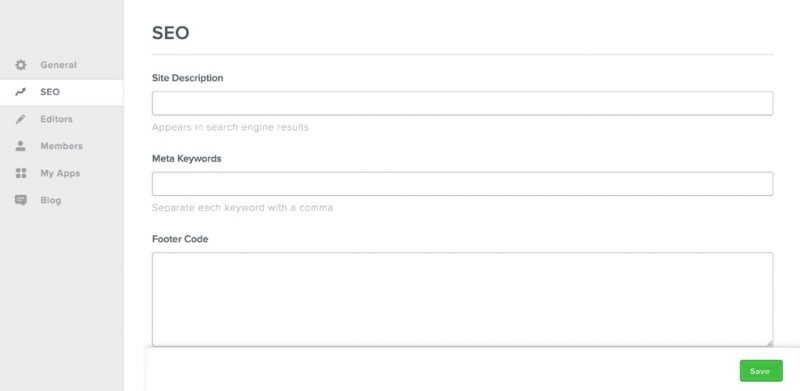
If you’re looking to add or change the description and keywords for your entire Weebly website, the feature can be found under Settings > SEO. Here’s a screenshot:

Weebly description and keywords

After performing the changes and publishing your website, keep in mind it may take several weeks to see results based on your efforts.

Additional Reading

If you liked this post, then you may consider subscribing to our WeeblyTutorials YouTube Channel for Weebly video tutorials. You can also find us on Twitter and Facebook.

Free support weebly

How to Properly Ask for Weebly Support and Get It

We do help dozens of people on a daily basis providing them with free Weebly support via multiple channels such as via our Twitter, Youtube, Facebook, contact form and mostly with the hundred of Weebly tutorials we have published.

As a volunteer providing free Weebly support, we sometimes encounter some frustrated readers who ask questions in a mad tone without taking the time to search through past tutorials and guides.

We do for sure understand their frustrations as we were beginners too at one point. Well, this post is made available to show you how to properly ask for Weebly support and get it.


Before You Ask, Understand this:

Before asking for Weebly support or help regarding a specific App or theme, we highly advise you to consider searching past articles. We have pretty much covered everything here at WeeblyTutorials.com.

You may also want to search Google or any other search engine so you attempt to find the needed information.

How to Properly Ask the Right Question?

The best place to ask for support for Weebly is in the Community forums. Before you submit the support thread, ensure that you have gone through the FAQ page and some past articles, either here at Weebly Tutorials or elsewhere. It’s also best to Google the problem to see if someone else has answered it already.

In your support thread, you want to be respectful, clear and concise. A wrong example would be:

[fusion_testimonials design=”classic” backgroundcolor=”” textcolor=”” random=”” hide_on_mobile=”small-visibility,medium-visibility,large-visibility” class=”” id=””][fusion_testimonial name=”” avatar=”none” image=”” image_border_radius=”” company=”” link=”” target=”_self”]

Wassup, there’s a prob with your @#$1 system. Don’t create *&%^ if it doesn’t work. I wasted X hours on this stupid thing. Care to help?

[/fusion_testimonial][/fusion_testimonials]


If you write like that, chances are that you will never receive any help.

If you’d like someone to help you for free, one of the best way to show respect is to write properly and to mention everything you have done up to that point to solve the problem, if any.

The right way of asking the question would be:

[fusion_testimonials design=”classic” backgroundcolor=”” textcolor=”” random=”” hide_on_mobile=”small-visibility,medium-visibility,large-visibility” class=”” id=””][fusion_testimonial name=”” avatar=”none” image=”” image_border_radius=”” link=”” target=”_self”]

Hello,

For some reason, I cannot add any image to my Weebly website. I tried using the image element but it’s not working and I would really appreciate if you can help me with it.

Thank you for taking your time out to help. I really appreciate it :)

[/fusion_testimonial][/fusion_testimonials]

Allow 24h to get a response.

You may also want to reach out to Weebly customer support over the phone: 00 1 844-493-3259. And for sure, you’re always welcome to get in touch with us via our contact form.

How many Weebly Apps

How Many Weebly Apps Should you Install on your Website?

Weebly Apps offer a ton of features and functionality that your website doesn’t have otherwise. With Apps, you can customize the website you’ve already created to better suit your needs. But you’ve probably heard that having too many Weebly Apps on your website is bad.


The Problem With Too Many Apps

The problems caused by Apps will vary. It depends on the ones you installed, the way they’re coded, which ones are actually active, and more. The biggest known issue with having too many Apps is that some can slow down the website.

Almost 50% of visitors will abandon a website if it takes longer than 3-4 seconds to load. Therefore, watching the number of Apps you add is really beneficial to your website’s success.

How Many Apps is Too Many?

There are hundreds if not thousands of Apps to choose from, so it can easy to add a few too many to your website. But how many Apps is too many?

The short answer is that it all depends on what your website needs. But, we mainly advise to run anywhere from 5 and 10 Apps as maximum.

Additional Reading

If you liked this post, then you may consider subscribing to our WeeblyTutorials YouTube Channel for Weebly video tutorials. You can also find us on Twitter and Facebook.

install a Weebly Apps

How to Install a Weebly App – Step by Step for Beginners

Weebly Apps are web applications which provide additional functionalities to your Weebly website. To install a Weebly App you just need to add it via the Weebly App Center. Once an App is added, you may enable or disable it from the Weebly Site Editor.


How to Install a Weebly App

You can install a Weebly app by via your Weebly Site Editor or directly from within the Weebly App Center. You can actually access the App Center under in Apps tab in the editor, via the Add App button in the build tab, or by going directly to Weebly’s App Center.

Weebly App Center

From there, you can search for any kind of apps or enter keywords to search through all apps.

Weebly Apps

Click on Add and you’ll be seeing this screen below

Manage Weebly Apps

Once you’ve connected the app you’ll be taken into the Weebly Site Editor where you’ll see your newly-installed app highlighted in the Build tab.

Weebly App settings

There you go. You’re all set. You can manage your Weebly Apps from within the Build tab of your Site Editor.

If you liked this post, then you may consider subscribing to our WeeblyTutorials YouTube Channel for Weebly video tutorials. You can also find us on Twitter and Facebook.

Weebly Apps

Weebly Apps — All What you Need to Know

Weebly Apps are some sort of web applications that can be integrated to extend and expand the functionality of your Weebly website.


At WeeblyTutorials, we’ve written a post about all the best Weebly Apps.

Free vs Premium Weebly Apps

Weebly Apps

There are literally tons of Weebly Apps available for free download from the Weebly App Center Directory. There are also premium/paid Apps.

Why would you want to pay for an App? Well, there are several reasons:

  • While there are hundreds of Apps available for free from the Weebly App Center, premium/paid Apps usually come with on-demand support technical assistance. They also work on maintaining the compatibility of Apps with Weebly platform as well as with other themes and Apps.
  • Apps usually implement changes on the code of Weebly. Sometimes an App’s code can get in the way of different app or with the theme, causing compatibility issues. With a paid App, it’s just nice to know you have support team that can lend a hand if anything goes wrong.

You might be wondering what types of things Apps can do. Well, if you can think about it, there’s probably an App for that. You just need to navigate through the Weebly App Center to see all of the possible ways Apps can improve your Weebly website.

Additional Reading

If you liked this post, then you may consider subscribing to our WeeblyTutorials YouTube Channel for Weebly video tutorials. You can also find us on Twitter and Facebook.

Verify weebly website

Verify your Weebly Website with Search Engines

Verifying your Weebly website with Google Webmaster Tools gives you access to different kind of statistic reports. It also ensures your website is indexed quite faster on Google. It’s not an absolute necessity to verify and link your website with Google Webmaster Tools but it’s a clever way to help your website’s overall SEO.


Verify your Weebly Website with Google

You can follow this link if you’d like to go to Google Webmaster Tools. Login or create a Google account if you don’t have. Once done, you’ll be taken to the Search Console. Enter the address of your site and click Add Property.

Verify Weebly website

Clicking Add Property will open the site Verify Ownership section. The next step is to select Alternate Methods and choose the HTML tag option.

Weebly website verification

You then need to copy the HTML code that Google gives you.

Weebly verification

Make sure to leave this page open.. Now from within the Weebly Editor go to Settings > SEO and paste the line of code you copied from Google into the Header box.

Weebly verification

Be sure to Save and Publish your Weebly website. When you’ve done this, hit the Verify button on Google Webmaster Tools interface. Give it a few minutes then your website will be verified with Google.

Now you should submit your sitemap by clicking on the Sitemaps link, and then Add/Test Sitemap.

You should be all set. :)

We hope this article helped you learn how to verify your Weebly website with Google. If you liked this tutorial, then you may consider subscribing to our WeeblyTutorials YouTube Channel for Weebly video tutorials. You can also find us on Twitter and Facebook.

Weebly sitemap

Weebly Sitemap: Create & Submit a Sitemap for your Weebly Website

A sitemap is a file that contains a list of all your website’s pages URL’s. It provides the different search engines such as Google with relevant information about your website’s URL’s and structure. No need to create a sitemap in Weebly as every Weebly website has already a sitemap. It’s automatically generated by Weebly. It’s always kept up to date also.


Weebly Sitemap: How Does it Work?

If you’re looking to create a sitemap for your Weebly website, you don’t need to worry about that. Weebly does it automatically for you, so it’s already there!

Weebly sitemap

Well, you can view your sitemap by adding sitemap.xml to the end of your domain name. For example: yourwebsite.com/sitemap.xml. You can submit your sitemap directly to Google. This makes it easier for Google to find all of the pages of your website and can improve the speed of Google crawling and indexing.

How to Submit a SiteMap for a Weebly website

To submit your Weebly sitemap:

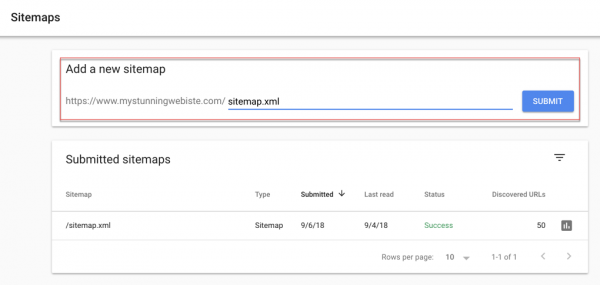
  1. Select your website on your Google Search Console home page.
  2. Click Sitemaps from the menu on the left.
  3. In the text field next to your domain, type sitemap.xml
  4. Click Submit.

Google console Weebly sitemap

Add your Weebly website to Google.

Top 5 Easy SEO Tips to Boost Your Weebly Website in Under an Hour

google calendar weebly

How to Add Google Calendar in Your Weebly Website

Do you want to add a Google Calendar in your Weebly website? Google Calendar is one of the most useful apps. It allows you to manage and organize almost everything around you. In this tutorial, we will show you how to add a Google Calendar in Weebly.

How to Add Google Calendar in Your Weebly Website


First, we need to get the embed code for Google Calendar. To do so, you need to login to Google calendar using your Gmail address and click on the “Settings” icon to navigate to “Settings” option in the dropdown.

add Google Calender to Weebly

Click then on the “Calendar” tab to see all your existing calendars and also an option to create a new calendar.

Click on the “Calendar” tab to see all your existing calendars and also an option to create a new calendar.

Here, we’re embedding the “Holidays in the US” calendar. Click on the calendar to see the embed code.

Add Google Calender to Weebly 3

Once done, now we’re interesting to add the actual Google Calendar to your Weebly website. On your Weebly site editor, drag and drop an “Embed Code” element and paste the Google calendar code inside. You calendar is ready now and will look something like below:

Adding Events to Calendar

Click on the “Create” button in Google calendar site to add your events to calendar.

If you liked this tutorial, then you may consider subscribing to our WeeblyTutorials YouTube Channel for Weebly video tutorials. You can also find us on Twitter and Facebook.