Skip to content Skip to main navigation Skip to footer

Tutorials

Add Weebly website to Google

How do I get my Weebly site to show up on Google

This article discusses how you can add your website to be indexed by Google and the other major search engines. This process is part of the SEO which stands for search engine optimization. You’re basically getting your website to show up naturally in search engines results without having to pay for it.

submit weebly to Google

Submitting your Weebly website to Google


Well, in order to get your Weebly website to be shown up on Google search, you’ll simply need to submit it to Google. Google’s URL submit is very quick and easy. Here’s how to proceed:

  1. Browse this link [Add website to Google]
  2. Once opened, write down your full website URL, example: http://weeblytutorials.com, click as needed on the captcha or type in the message that ensures Google you are an individual, not a robot and hit submit.

This way you have submitted your website to Google search engine. If your website has the minimum requirements to be shown up on Google, it will be indexed within one business day or less. By requirements, you’ll want to make sure you have added some pages with some relevant content.

Submitting your Weebly website to Bing and the other Search Engines

As per Yahoo, and since 2010, its search has been powered by Microsoft’s Bing search engine. This means when you submit your site to Bing you will also show up in Yahoo’s search results.

Well, in order to submit your Weebly website to Bing, just like Google. You will first need to have a Bing login, then go to Bing’s Webmaster Tools page. Once logged in simply type in the URL of your homepage and press “submit”.

BTW, most of the rest of search engines nowadays such as ‘Ask’ no longer allow you to submit your website to be indexed. They now solely crawl sites and do the job automatically it selves.

We’re providing you with a video tutorial as well.

[fusion_youtube id=”zeWX94u-9OU” width=”” height=”” autoplay=”false” api_params=”” hide_on_mobile=”small-visibility,medium-visibility,large-visibility” class=””][/fusion_youtube]

If you liked this tutorial, then you may consider subscribing to our WeeblyTutorials YouTube Channel for Weebly video tutorials. You can also find us on Twitter and Facebook.

subpages weebly

How Can I Add SubPages to a Weebly Website?

This article explains how to add subpages to your Weebly website. BTW, before you dig more into details here, you may want to have a look at the previous tutorial on how to add pages on Weebly.

add subpages weebly

Well, you can do this by dragging a page or pages underneath and to the right of another page. These subpages appear in a drop-down menu when you scroll over the page to which you connected them.

To edit the content of a page just click on its link from the navigation menu or go to the Pages tab, select the page from the list, and it will open in the Editor.


To make things even simpler here’s a video that showcases the procedure of adding subpages.

[fusion_youtube id=”8jasLrmE6co” width=”” height=”” autoplay=”false” api_params=”” hide_on_mobile=”small-visibility,medium-visibility,large-visibility” class=””][/fusion_youtube]

If you liked this tutorial, then you may consider subscribing to our WeeblyTutorials YouTube Channel for Weebly video tutorials. You can also find us on Twitter and Facebook.

add pages to a weebly site

How Can I Add Pages to a Weebly Website?

This article explains how to add pages to a Weebly website. This easily can be done via the Pages tab, which opens a Pages list in the sidebar. Click the + to create a new page.

There is an option to Add a Standard Page, a Blog Page, a Store Page, or an External Link. Let’s focus on creating Standard Pages.

Add weebly pages

Once you select the Standard Page option, it will add a New Page and prompt you to assign it a name, as well as provide you with a few options for the look and function of the page. It will also automatically show you this page while you work on it.

add pages to weebly

By adding more pages following the same procedure of clicking Add Page and choosing Standard Page again (and again). And as you add (and assign name) each of your pages, they’ll automatically become part of your site’s navigation bar.


You can then easily re-arrange the order of the pages by clicking and dragging them up and down the Pages list. Dragging a page to the top of the list will make that page your Home.

Changing the order of pages in the list will also change the order in which they’re displayed in the navigation.

add pages to weebly website

Here’s a video tutorial that shows how to add pages on Weebly.

[fusion_youtube id=”9LUayv7FldQ” width=”” height=”” autoplay=”false” api_params=”” hide_on_mobile=”small-visibility,medium-visibility,large-visibility” class=””][/fusion_youtube]

That’s it. You’re done adding pages to your Weebly site! You’re also able to create subpages of other pages. Check this tutorial on how to add subpages to your Weebly website.

If you liked this tutorial, then you may consider subscribing to our WeeblyTutorials YouTube Channel for Weebly video tutorials. You can also find us on Twitter and Facebook.

weebly SSL

How to Enable a SSL Certificate for a Weebly Website

This article goes through the procedure of enabling SSL certificates on Weebly websites. Many of you have asked about the benefits of SSL and whether it’s necessary for your Weebly website, blog or online store, so we’d like to shed some light on SSL and its value for both security and trust online.

SSL stands for Secure Sockets Layer and is used to encrypt information transferred across the Internet. This encryption protects your information from getting intercepted by unwelcome eavesdroppers and is enabled through an SSL certificate that allows visitors to browse a website over a secure connection.

SSL certificate Weebly

An SSL certificate can do a way more than just data encryption, it also serves as a powerful trust signal for your visitors, which can help increase sales, form submissions, or whatever it is you need your website to do.

Common SSL Uses

SSL encryption (secure connection) is absolutely vital when sensitive personal information is entered on a website, online store or blog. Weebly Business Plan includes already a free SSL certificate, allowing your clients to checkout directly from your website. You can enable SSL for your entire site or just on checkout from the General tab in the Settings dashboard.

Enable a SSL Certificate for a Weebly Website

We may clarify a bit more. The SSL installation requires server side access, usually on the root level. For security reasons, Weebly and other site builders will not grant you that access. However, if you buy SSL through them, they have a magical wand that does the installation for you on their servers (of course you may also call it up-selling).


As mentioned above, Weebly Business plan includes already a free SSL certificate. No need to order one. However, if you’re running on another Weebly plan, your only option is to upgrade. Purchasing a SSL through a third party service won’t do the job as well. The only SSL certificates that work for domains attached to Weebly sites at this time are the ones that come with Business and Performance packages.

If ever you have the appropriate Weebly plan and the SSL still not enabled, you may attempt to forcibly enable it via the dashboard. Here’s how, click Settings from Weebly Site Editor then select Enable SSL.

If you liked this tutorial, then you may consider subscribing to our WeeblyTutorials YouTube Channel for Weebly video tutorials. You can also find us on Twitter and Facebook.

weebly-website-development

How to Add Different Types of Elements on Weebly

In order to add different types of elements such as images, text zones, videos, and so on, we will need then to add them as elements. They are the building blocks of a website. Mostly all the content you add to your web pages will be built with elements.


Weebly elements

It is simple, you only need to find the element you want to use then Click, Drag and Drop it exactly where you want it. It’s literally: Find, Click, Drag, Drop.

Weebly elements

It’s possible to add as many elements to a page as you want, and the page will just lengthen as you add more elements on top of, or below, the last. As you drag an Element to a page, this blue guide line will tell you where the element will be placed when you drop it.

Either stack elements on top of each other, or, drag one element to the left or right of another.

Weebly elements

When you place elements side-by-side, we’ll generate two columns on the page that allot equal space to each element.

You can adjust the space between these columns by using the narrow bar that appears between them. Just click and drag to the left or right.

Weebly columns

All elements have three universal options: Copy, Delete and Move.

Hover over an element and a blue box will appear.

The “X” in the upper right allows you to delete this element. Keep in mind though, once deleted, it can never come back.

delete elements

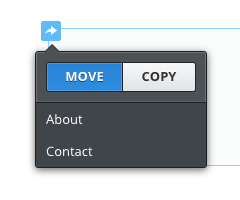
The arrow in the upper left allows you to copy an element (to the same page or another page) to move an element (to another page).

move element

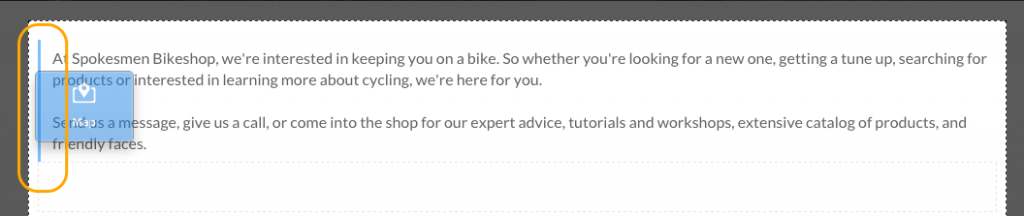
And clicking on the box between the “X” and the arrow, allows you to pick the element up and drag it around the page.

There you go. We’re done with this article. :)

If you liked this tutorial, then you may consider subscribing to our WeeblyTutorials YouTube Channel for Weebly video tutorials. You can also find us on Twitter and Facebook.

weebly website up

How to Check if your Weebly Website is Working Worldwide

In this article, we are going to learn how to check if a specific Weebly website is functioning as it should be and if it’s actually reachable worldwide or not. This way will make sure that the website is up and available for everyone across the Internet.


In order to perform this verification, we are listing few different methods. You may choose the one you like most or use all of them to be completely sure about whether your Weebly website is up or not.

What you’ll need

  • A stable internet connection.
  • URL of a website you want to check.

#1. Checking with downforeveryoneorjustme.com

This is actually the simplest method. That platform will output a straightforward answer: Your website is up or down.

  1. Open downforeveryoneorjustme.com (Short URL at isup.me) and you’ll be able to enter your website’s URL. When you have the URL filled in simply click ENTER on your keyboard or click or ‘just me?’ button on the website:

weebly website down

#2. Checking with a third party proxy.

One of the best solutions to check if an actual website is reachable or not is to access it via VPN or a proxy. It allows you to browse your website through a different network. This way you’ll make sure the website is accessible everywhere. Here are two different third party providers that offer anonymous surfing services: HideMe & AnyPe.

I believe you have now learned some methods on how to check if a Weebly website is reachable (working worldwide). You can combine all of these ways to gather the most information and to be completely sure about the status of your website.

Weebly 404 Page Not Found Error

Weebly 404 Page Not Found Error

In this article, we’re stressing the famous Weebly 404 page not found, error. You may have encountered this error when you first started using Weebly.

Weebly 404 Page Not Found Error

Homepage returns a 404 Not Found Error

If your entire website is unreachable, two possible reasons are behind this issue. First commonly reason is that you did not yet publish the website from within the Weebly Site Editor. To resolve the issue, you’ll simply need to publish your website. The second reason is that your domain name is not well connected to your website. That means you’ll have to properly connect your domain name to Weebly. Here’s a simple guide on how to point your domain name to Weebly.

Wrong URL’s – Non-existing pages


This error may happen when you try to access any wrong URL within the website. For instance, if you’re trying to access a page that it does not exist, the 404 not found error will appear. You will need to double check for errors in the URL. Often times the 404 Not Found error appears because the URL was typed wrong or the link that was clicked on points to the wrong URL.

Weebly Site Editor 404 Page Not Found Error

In some rare cases, you may encounter this issue when accessing to your Weebly site editor. This problem has been reported one time in March 2017 by several users. Weebly explained that this was due to some unexpected Weebly maintenance and it took about 40 minutes to resolve.

Related: How to Choose the Best Domain Name

If you liked this tutorial, then you may consider subscribing to our WeeblyTutorials YouTube Channel for Weebly video tutorials. You can also find us on Twitter and Facebook.

Weebly IP Address

Weebly IP Addresses List

Weebly IP addresses are used to point domain names to your Weebly website. In this article, we’re just listing the different IP Addresses which belong to Weebly so everyone keeps a reference when they need them. For instance, if you have purchased a domain name from any registrar, you may easily link it to your Weebly website using one of these IPs.

Weebly IP Addresses List

All that you’d need to do to point your domain name to Weebly is to change the actual domain’s A record to one of these IPs below:


  • 199.34.228.55
  • 199.34.228.56
  • 199.34.228.57
  • 199.34.228.58
  • 199.34.228.59

“A Records” change differs depending on your domain’s registrar. If you’re having trouble doing so, you may contact the customer service. Reach out to us as well, will be happy to lend a hand.

Now if you have the Weebly IP address but you’re still unsure on how to proceed with your domain, this following article is designed to walk you step-by-step through the process of pointing a domain purchased from another domain registrar to Weebly via an IP address, also called an A record.

Further reading:

Related: How to Choose the Best Domain Name

How to Create an Online Store with Weebly

Weebly provides a surprisingly easy way to sell your products online. Weebly eCommerce capabilities are enabled only within the paid plans starting from the business plan.

In this tutorial, we’re going to explain how to create an online store with weebly.


Related: How to Create a Free Blog with Weebly: 3 Simple Steps

Online Store Creation with weebly

Check the below demo explaining the step by step process of creating an online store in Weebly starting from site creation to actual view of your store in a published site.

[fusion_youtube id=”0BjOI2jwTd0″ width=”” height=”” autoplay=”false” api_params=”” hide_on_mobile=”small-visibility,medium-visibility,large-visibility” class=””][/fusion_youtube]

Here’s another awesome video that goes in details on how to build an online store with Weebly

[fusion_youtube id=”0CCKJwb-OUM” width=”” height=”” autoplay=”false” api_params=”” hide_on_mobile=”small-visibility,medium-visibility,large-visibility” class=””][/fusion_youtube]

Customizing Your Weebly Store

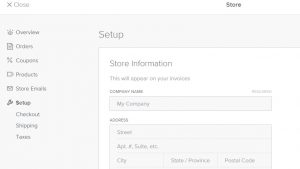
To add and/or customize your Weebly store, you’ll need to hit on “Store” tab in Weebly Site Editor. Once clicked, you’ll be able to access the available customization options.

Related: Ultimate Guide: How to Start a Weebly Website (Step by Step)

Weebly store setup

Weebly Checkout Options

Weebly offers four checkout options:

  • PayPal
  • Stripe
  • Square
  • Authorize.Net

Weebly store checkout

Here are the sub-tutorials, part of our Weebly Store series:

If you liked this tutorial, then you may consider subscribing to our WeeblyTutorials YouTube Channel for Weebly video tutorials. You can also find us on Twitter and Facebook.

How to Insert a Background Image in Weebly

This article describes how to insert or change a background image in Weebly. This feature allows you to uniquely customize the theme you’re using by changing your site’s background image with a new background image.


Customizing Weebly Background Image

Weebly offers hundreds of ready-to-use templates with fixed background image, in this tutorials, we explain the following possibility of inserting/changing the background image on a Weebly site.

Insert and/or Change the Background Image in Weebly

    1. Login to your Weebly Site Editor and edit the site which you want to change the background image.
    2. Once logged in, navigate to the homepage, click anywhere and the following toolbar will appear

Insert background image weebly

    1. Click Edit Background then Images

Insert background image weebly

  1. The background images gallery will appear. You have the option to choose an image or to hit upload and select the preferred image from your computer.

Insert background image weebly

If you liked this tutorial, then you may consider subscribing to our WeeblyTutorials YouTube Channel for Weebly video tutorials. You can also find us on Twitter and Facebook.