Skip to content Skip to main navigation Skip to footer

All Tutorials

Weebly htaccess file

How to Edit Weebly htaccess File

This article walks you through the process of modifying the Weebly .htaccess file. An .htaccess file is usually accessible via an SFTP / FTP client like FileZilla, Transmit, or Cyberduck. As it’s known, Weebly does not allow FTP / SFTP access thus, no access to .htaccess file.

How to Edit Weebly .htaccess file

However, there’s a little workaround that we’ve found for Pro Weebly users. What you can do to edit the .htacess file is to export your Weebly site. Once done, you’ll find the file in question with the rest of the downloaded files. You may then edit the htacces file as needed, then import the website. You may need to mess around a bit it wasn’t a straightforward operation as I recall. There’s unfortunately no workaround for the free Weebly version.


We hope this article helped you learn how to edit Weebly htaccess file. You may also want to see our guide on how to stop search engines from crawling a Weebly site.

If you liked this tutorial, then you may consider subscribing to our WeeblyTutorials YouTube Channel for Weebly video tutorials. You can also find us on Twitter and Facebook.

WordPress to Weebly

How to Move from WordPress to Weebly

This article goes through the process of how we can move from WordPress to Weebly.

If you’ve already created a Weebly account, you can start building your website while keeping the previous one running as it is. You can then connect your domain to Weebly if you’ve registered it elsewhere once you’re ready for the new site at Weebly to go live and replace the WordPress site. Technically, there’s not a way to directly transfer the website itself from WordPress over to Weebly, so you would be building the site fresh here. Once you’re happy with the look of the site you’ve created with Weebly, you can connect your domain to it and then publish right away.


Step 1. Getting Started – WordPress to Weebly

To create a Weebly blog, you need two things:

– A Weebly account (this is where your website lives on the internet) – Mandatory.

– A domain name (this is the name of your blog i.e weeblytutorials.com) – Optional as Weebly already provides you with a free subdomain. But it’s always professional to have your own domain name.

Unless you’re getting a premium subscription, Weebly itself is free. Domain name though comes at a cost of around $12.99 / year.

Thankfully, Bluehost, one of the domain oldest trusted registrars has agreed to offer our users with over 60% off on domain name registration.

Step 2. Copy and Paste Content

Once you have setup your Weebly website and have already created the needed pages and posts, you can begin to manually copy the relevant text from WordPress and paste it into the equivalent page in Weebly.

Clearly, you will want to bring over your images/videos as well. However, this requires you to save the images from the WordPress site and upload them manually to the Weebly site. Bear in mind that you will need to repeat these steps for each post and page on your Weebly site.

Unfortunately, automated migration from WordPress to Weebly does not exist. Will have to manually copy/paste everything ourselves.

Step 3. Point Your Domain to the Destination Site

Once you have built your new Weebly website, tested it and made sure it’s working as it should be, you may then proceed and point the domain.

The final step, once you are happy with the migration, will be to switch over your domain. This is a two-step process:

1. Transfer Your Domain from WordPress:

  1. Go to Domains tab in your My Site menu. Select Transfer Domain, and you will see options to transfer the domain to a different registrar, user, or site.
  2. Select Transfer to a different registrar and you will see a message explaining that your domain first needs to be unlocked. Click Update Settings and Continue. The next page will confirm that you have been sent a transfer code (also known as an “auth code” or “EPP code”) via email.
  3. Within a few minutes, you will receive an email with a transfer code (listed next to Authorization Info). To complete your domain transfer, provide the code following Authorization Info to your new registrar. This unique code allows us to release your domain to your new registrar for registration.

2. Change Your Weebly Site to Use Your Domain

Once the transfer is complete, Weebly can be set to use your domain, instead of the temporary one you set-up in the beginning.

You just need to open up the Settings tab and then click the “Change” button connected to the Site Address. Continue with the listed steps.

We hope this article helped you learn how to move from WordPress to Weebly. You may also want to see our guide on how to stop search engines from crawling a Weebly site.

If you liked this tutorial, then you may consider subscribing to our WeeblyTutorials YouTube Channel for Weebly video tutorials. You can also find us on Twitter and Facebook.

Unpublish Weebly

How to Un-publish a Weebly Website

At a certain time, you may want to completely un-publish your Weebly website. This article shows how to do so.


Once logged into your Weebly Site Editor, under Settings, click General, at the bottom of the page Weebly shows you the last time you published, as well as giving you the option to Un-Publish your site. When you decide you’re ready for people to view your site again, just click Publish. It’s that simple.

Un-publish weebly

We hope this article helped you learn how to un-publish your Weebly website. You may also want to see our guide on how to stop search engines from crawling a Weebly site.

If you liked this tutorial, then you may consider subscribing to our WeeblyTutorials YouTube Channel for Weebly video tutorials. You can also find us on Twitter and Facebook.

How to Password Protect a Weebly Website

Weebly password protect feature is available for Weebly Pro and Business users. It allows owners to lock some pages or the entire website with a password. This is a very useful option especially when you run a personal or confidential website and want to provide access to only a few visitors.

Search engines though will still index your site and show it on the search result pages even though you set a password. Learn about hiding your Weebly website or page from search engines.


How to Password Protect your Entire Weebly Website

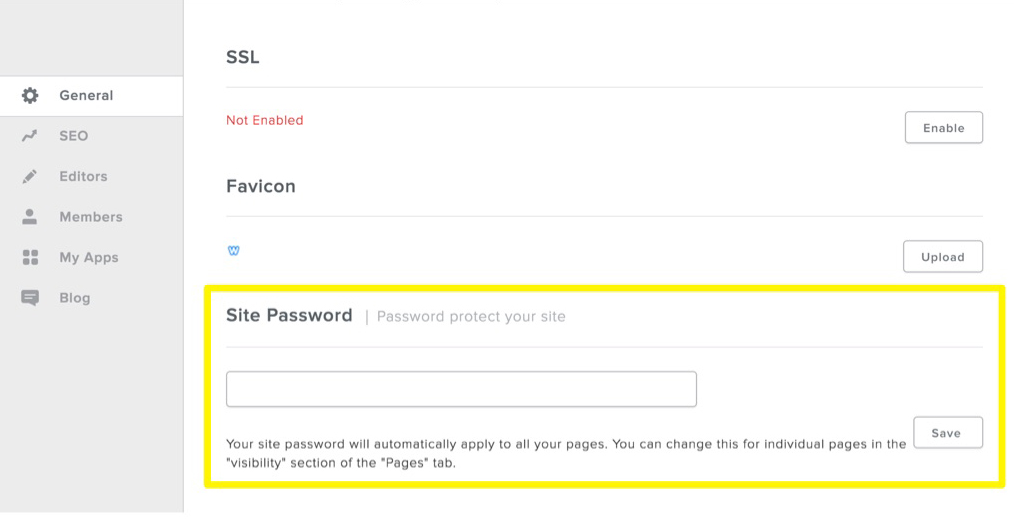
Once logged in into your Weebly Site Editor, under the Settings tab > General > Site Password, you can enter the password you’d like to use to protect your pages, then click Save.

Pssword protect weebly

How to Password Protect Certain Pages on Weebly

Entering a website password by following the steps listed above will automatically lock all the pages on your site. If you only want to password protect some specific pages, you can go to the Pages tab and selectively enable or disable the password protection using the visibility menu.

Password protect Weebly pages

Related: Ultimate Guide to Creating a Weebly Membership Website

We hope this article helped you learn how to restrict access to your Weebly website. You may also want to see our guide on how to stop search engines from crawling a Weebly site.

If you liked this tutorial, then you may consider subscribing to our WeeblyTutorials YouTube Channel for Weebly video tutorials. You can also find us on Twitter and Facebook.

Weebly robot.txt file

Weebly and the Robots.txt File

The robots.txt is simply a file that contains rules used by websites to interact with web crawlers and robots. The file defines how to inform the web robot about which areas of the website should not be processed or scanned.

Weebly websites as well automatically include a robots.txt. Anyone can use it to control search engine indexing for specific pages or your entire website. You can view your robots file by going to www.yourdomain.com/robots.txt or yoursitehere.weebly.com/robots.txt.


Working with your Weebly Robot.txt file

Now working with your Weebly robot.txt file will give you more control over your website. You may decide for example to prevent your entire website or just some specific pages from being indexed by search engines. The default setting is to allow search engines to index your entire site. Below some very useful tutorials to play with these settings:

How to Hide a Weebly Page from Google

How to Stop Search Engines from Crawling a Weebly Site

If you liked this article, then you may consider subscribing to our WeeblyTutorials YouTube Channel for Weebly video tutorials. You can also find us on Twitter and Facebook.

Connect PayPal with Weebly

Add PayPal to your Weebly website

Weebly offers the following four checkout options:

  • Credit Cards
  • Square
  • PayPal
  • Authorize.Net

Among all PayPal is the preferred payment system for online vendors due to its popularity and the ease of use. This tutorial describes how to enable PayPal to accept payments online on your Weebly website.

Add PayPal to Weebly
  1. Login to your Weebly account and select the site you want to edit.
  2. Click on the “Store” tab in Weebly editor.
  3. Click on the “Setup” tab.
  4. Click on “Checkout” tab.

You will see the below screen offering the different checkout options Weebly has.

Add PayPal to Weebly

Click on the “Connect” button under PayPal section to see a popup screen asking you to enter your PayPal ID. Your PayPal id will be connected as a checkout option and you can disconnect it any time later.

We hope this article helped you learn how to connect PayPal to your Weebly website. You may also want to see our guide on how to stop search engines from crawling a Weebly site.

If you liked this tutorial, then you may consider subscribing to our WeeblyTutorials YouTube Channel for Weebly video tutorials. You can also find us on Twitter and Facebook.

Hide Weebly page from Google

How to Hide a Weebly Page from Google

If you ever wonder if it’s possible to hide a Weebly page from Google, the answer is, yes! Well, sometimes you may need to hide a page from Google to protect your privacy or to keep away unwanted visitors. In this tutorial, we will show you how to hide a Weebly page from Google.

Hide Weebly page from Google

How to Hide a Weebly Page From Google

In order to protect one or some of your Weebly pages from being indexed, you may do it simply from the SEO Settings menu of every page. First, make sure that the “Hide site from search engines” toggle shown above is set to Off. Then go to the Pages tab, click on the page you want to hide, and then on the SEO Settings button.

hide weebly page

Next thing, you need to click the checkbox to hide the page from search engines, and then click on the back arrow at the top to save your changes and return to the main settings for the page.

hide Weebly page search

You may follow the same steps for any additional pages you want to hide from search, and then publish your site when you’re done.


We hope this article helped you learn how to hide a Weebly page from Google. You may also want to see our guide on how to stop search engines from crawling a Weebly site.

If you liked this tutorial, then you may consider subscribing to our WeeblyTutorials YouTube Channel for Weebly video tutorials. You can also find us on Twitter and Facebook.

Hide Weebly website

How to Stop Search Engines from Crawling a Weebly Site

In this article, we’re going to explain how you can stop search engines from crawling and indexing your Weebly website. Actually, there are many scenarios when you would want to stop search engines from crawling your website. Here, we will show you how to stop search engines from crawling a Weebly website and therefore hiding it from the search results.

How to Stop Search Engines from Crawling a Weebly Site

The default setting on Weebly is to allow search engines to index your entire website. If you want to prevent your website from being indexed by search engines such as Google, Yahoo, and the rest, browse to the Settings tab in the editor and click on the SEO section. Scroll down to the “Hide site from search engines” toggle, switch it to the On position, and re-publish your site.

Hide Weebly from Google


We hope this article helped you learn how to stop search engines from crawling a Weebly website. You may also want to see our guide on how to hide a Weebly page from Google.

If you liked this tutorial, then you may consider subscribing to our WeeblyTutorials YouTube Channel for Weebly video tutorials. You can also find us on Twitter and Facebook.
Start podcast with Weebly

How to Start a Podcast with Weebly

Podcasts are growing in popularity and are getting easier to produce thanks to platforms such as Libsyn, Spreaker and Soundcloud. There are also tools for website owners to share broadcasts and replays directly with listeners. So how can you embed podcasts on Weebly your website?


There are two ways to do it with Weebly. The first method is to simply upload their MP3 audio files directly into Weebly using the Audio element. Drag the element where you want it on your page and then click to add files and details about your podcast, including the name of your show and the title of the episode. Here’s a dedicated article that explains how to upload music and audio files in general to Weebly.

The second method is to embed an external podcast player. You may do so following these simple steps:

1. First thing is to browse to the podcasting platform where you host episodes. If you didn’t yet choose/have distribution platform, you may use one such as iTunes, Stitcher, Google Play and more. Libsyn and Spreaker are two of the most popular podcast hosting choices, though Spreaker is better for those just getting started (and who aren’t sure of their commitment to podcasting).

2. Second, you need to find your list of episodes and then pull up the one you’d like to embed. Most often, the bottom right is where you will find buttons for downloading or embedding the episode you’ve chosen. Click “embed” and then choose the type of widget you’d like to render, including the size and color of the player you’ll embedding. Finish styling the widget and copy the code to your computer’s clipboard.

3. Lastly, create a new page or blog entry on your Weebly site. Select the Embed Code element and drop it where you want. When asked to “click to add HTML,” do so, and then cut and paste the code within. Check for errors and hit publish.

Here’s a video that shows as well how to start a Podcast on a Weebly website:

[fusion_youtube id=”rPNMb8_qx8″ width=”” height=”” autoplay=”false” api_params=”” hide_on_mobile=”small-visibility,medium-visibility,large-visibility” class=””][/fusion_youtube]

We hope this article helped you learn how to How to Start a Podcast with Weebly. You may also want to see our guide on how to Upload Music to a Weebly Website via the Audio Player.

If you liked this tutorial, then you may consider subscribing to our WeeblyTutorials YouTube Channel for Weebly video tutorials. You can also find us on Twitter and Facebook.

Upload Music to a Weebly Website via the Audio Player

Weebly audio player allows anyone to easily add music, podcasts, or other audio files directly to your Weebly website. This feature requires either a Pro or Business subscription.


Here’s how it works:

Upload Music to a Weebly Website via the Audio Player

The Audio Player element is available under the “Multimedia” category of elements.  Drag it to a page to get started.

Upload Music to Weebly Audio Player

Once you have added it to a page, click anywhere in the element to open up the Audio Toolbar. Then click Upload Audio to select an Audio file to upload and use the Track Title / Artist fields add a Track Title and Artist to the player.

Upload Music to Weebly Audio Player

Here’s a video as well that shows how to add music to a Weebly website:

[fusion_youtube id=”i_orVZe5Vcs” width=”” height=”” autoplay=”false” api_params=”” hide_on_mobile=”small-visibility,medium-visibility,large-visibility” class=””][/fusion_youtube]

We hope this article helped you learn how to upload Music to a Weebly Website via the Audio Player. You may also want to see our guide on How to Start a Podcast with Weebly.

If you liked this tutorial, then you may consider subscribing to our WeeblyTutorials YouTube Channel for Weebly video tutorials. You can also find us on Twitter and Facebook.