Skip to content Skip to main navigation Skip to footer

Beginners Guide

Weebly lightbox

Weebly Lightbox — How to Add it in your Weebly Website

A lightbox popup is a web form that appears on top of the page window that you are browsing. When an image for example is displayed in the overlaying window, visitor will still be able to navigate on the web page with the keyboard without closing the popup. The outside area in the page is dimmed out.  If we click outside the lightbox, the popup will be closed.

Weebly lightbox

Weebly Lightbox — How to Add it in Weebly


Here we listing the different ways on how to add popup in Weebly.

Enable and/or Disable Lightbox in Weebly

Weebly actually allows to add lightbox effect to the images using two elements:

  • Image Element – you can add Weebly lightbox effect to a single image.
  • Gallery Element – you can add Weebly lightbox effect to an image gallery.

Adding Weebly Lightbox on Single Image

Drag and drop an image element on the desired content area and add the image to your Weebly website. Once added, click on the image to see the advanced popup settings box as shown in the screenshot below.

Weebly Lightbox Option

From there, you can enable or disable the Weebly lightbox using the “Lightbox” option.

Using Lightbox on Gallery

In order to use Lightbox on gallery, add a gallery element in Weebly and insert all the needed images. Browse to the advanced settings by clicking on one of the added images. You will be able to enable lightbox under “Thumbnail” option. The gallery element has 3 options for lightbox:

  • Lightbox and Full Thumbnails
  • Lightbox Only
  • Lightbox & Partial Thumbnails

We hope this article helped you learn how Weebly lightbox works and how to add them into your website.

If you liked this post, then you may consider subscribing to our WeeblyTutorials YouTube Channel for Weebly video tutorials. You can also find us on Twitter and Facebook.

Titles in Weebly - How to add H1 tag in Weebly

Titles in Weebly: How to Add H1 to H6 Heading Tags in Weebly

In this article, we explain how titles work in Weebly. Following the provided steps will teach you on how to add H1 to H6 heading tags in your Weebly website.

Weebly H1 Tag Issue

Weebly website owners have a major SEO issue of missing H1 title tags in their Weebly website.

By default there’s no way to add a H1 tag in any pages from the Weebly Site Editor. This actually causes SEO-related issues as the different search engines such as Google they do consider H1 tag as a primary title of your content and further headings as a sub-header entities how it may appear in a typical blog article.

Preferably, an H1 title should be the first thing in a page content to infirm search engines what the page is about. Hence missing H1 tags will be considered as high priority issue from SEO perspective.

How to Add the H1 Tag in Weebly

Even if the H1 title option isn’t available per default in Weebly, you actually need to add it to your pages and articles. This helps both search engines as well as improves user’s readability.

As there’s no default way to do so, here we’re providing the magic solution on how to add H1 tag to your Weebly pages. For this, you need to use the embed code element to add a H1 code.

Here’s the code that you need to copy and paste in order to have the H1 title:

<h1 style=”text-align:left;font-size:28px;”> H1 Title for Your WebPage</h1>

You can also use H2-H6 tags in the same manner as H1 tag to provide more structured information to your reader. Here’s an example of H4 title code:

<h4 style=”text-align:left;font-size:28px;”> H4 Title for Your WebPage</h4>

If you liked this tutorial on how to titles work in Weebly and how to actually add them into your Weebly website, then you may consider subscribing to our WeeblyTutorials YouTube Channel for Weebly video tutorials. You can also find us on Twitter and Facebook.

add a favicon to Weebly

How to Add a Favicon to Weebly in 5 Minutes

Favicon is a small image (like a logo in this case) shown in the address bar of the web browser besides the URL or just on the corner of the browser’s tab. If you still not getting what it means, they are actually the most commonly known as the small icon that displays next to a website’s name in a browser tab.

It’s a feature that comes with Paid Weebly plans. You may want to follow the steps listed below to easily add a favicon to Weebly even a free Weebly website without the need to have your account upgraded to any Paid account.

Why you should Add a Favicon to Your Weebly Website?

Actually adding a favicon establishes your website’s identity. ,It also improves your website’s usability and user experience. This image will help you understand it better:

Weebly favicon

Add Favicon in Weebly Website with a Paid Subscription

If your Weebly website is upgraded to one of the paid subscriptions, you can do this very easily. To learn how to so and add a favicon to your Weebly website, watch the short video. If you haven’t upgraded to any paid subscriptions, then read the article that follows it.

Add Favicon to a Free Weebly Website

Step 1. Convert the logo image you have to a .ico file

If you don’t know how, here’s a favicon generator that can help you with that: “freefavicon.com”. Browse the website and select your desired image to convert it into a .ico file. Download then the “favicon.ico” file.

Step 2. Upload your Favicon to Weebly

Well, once you have your .ico file ready as explained above, head out to your Weebly account so you add the favicon where you want it to be.

To do so:

  1. Login to your Weebly Site Editor
  2. Head out to the “Theme” section in the top of the Weebly Site Editor and hit “Edit HTML/CSS”
  3. Hit the “+” small icon just next to “Assets”
  4. Once done, hit the “Upload File(s)” button and upload your favicon.ico file.

Also, make sure to upload a png the same name as your .ico such as favicon.png and favicon.ico – upload them to the same folder or root.

When you upload the .PNG right click it and copy image address. Copy it then into notepad and change .png to .ico then copy it with the .ico at the end. Afterward, use that as your link in the header section like explaining below in step 3.

Step 3. Link the favicon to your Weebly website

Follow these steps to link the favicon to your Weebly website:

Follow the following path from your Weebly Site Editor:”Settings > Search engine optimization > Header code” and paste the following HTML code:

<link rel=”shortcut icon” href=”Your Favicon Link”/>

Favicon in Weebly

Now of course, where it says Your Favicon Link, it should have the actual URL of your favicon file. Done? There you go — you should be all set! Save your settings and publish your Weebly website.

If you liked this tutorial on how to add a favicon on Weebly, then you may consider subscribing to our WeeblyTutorials YouTube Channel for Weebly video tutorials. You can also find us on Twitter and Facebook.

Create a Table of Content in Weebly

How to Create a Table of Content in Weebly Posts and Pages

Ever wondered how to create a table of content in Weebly? Well, you may have seen the table of contents on other websites. A table of contents makes it easier for visitors to jump to the section they want to read in long posts.

It also helps with your Weebly SEO performance because Google and other search engines automatically add a jump to section link next to your website in search results.


Create a Table of Content in Weebly Posts and Pages

The technique that we’re going to explain here uses the fact that in HTML code, anything following a # sign in a link location is considered to be an anchor – a label for specific place on a web-page. We have a tutorial that explains how to create anchor links in Weebly.

In this example, we will be naming our sections as the following Title 1, Title 2, etc., though obviously they can be anything.

Create a Table of Content in Weebly

#1. Preparing the HTML code. Open any text editor software such as notepad that you can use for copying and pasting text.

#2. Go to the page where you want to create the table. Copy the URL for that page, and paste it into the notepad. You will use this as a template. It might be,

https://weeblytutorials.com/start-here

#3. Now open the Weebly Site Editor and go to the page in object. Add a Title element at the top of the page and enter, e.g., “Table of Contents”, or whatever you want.

#4. Add a Text element, and into the text block enter the items in your table of contents, on separate lines, e.g., “Title 1”, “Title 2”, etc.

#5. Select the first entry in the table and click on the “Create Link” widget. In the dialog choose the “Website URL” option. Copy the URL you saved in the notepad and paste into the box.

#6. At the end of the URL, add the pound sign followed by an identifier. You might use, e.g., “#title1”. The full link will then be,

https://weeblytutorials.com/start-here#title1

#7. Repeat from step 5 for the second entry, using the appropriate identifier, e.g., “#title2”.

https://weeblytutorials.com/start-here#title2

#8. Repeat from step 5 as needed.

Related Read: How to Add Tables in Weebly

If you liked this tutorial, then you may consider subscribing to our WeeblyTutorials YouTube Channel for Weebly video tutorials. You can also find us on Twitter and Facebook.

Learn Weebly for free

How to Learn Weebly for Free in a Week (or Less)

Are you looking to learn Weebly and create your own website? Ease of use is one of the best things about building and managing a website with Weebly, which makes it the world’s most popular drag-and-drop website builder.

Getting familiar creating websites with Weebly does not require a lot of time or money. Anyone can do it on their own.

This article will guide you through the process on how to learn Weebly for free in a week (or even less). The goal here is to help you familiarize yourself with Weebly and become able to create websites yourself.


Why Learn Weebly and Not Anything Else?

Weebly is by far the world’s most popular drag-and-drop website builder. It actually allows to create just any type of websites.

Weebly powers millions of websites worldwide. It has been helping thousands of business owners around the globe having their online presences up and running, generating thousands of job opportunities around the world, and there are millions of websites making money using Weebly.

In short, apart from economic opportunities, Weebly is a great tool that enables people to do awesome things online.

It is highly recommended and quite an indeal solution for small businesses to get their online presence going on, at the same time it is economical enough (mostly FREE).

With a thousands of Apps and Weebly themes, Weebly is easy to extend and allows you to make any type of website you may imagine.

What Do I Need to Learn Weebly?

Learning Weebly is easy as long as you are willing to commit at least an hour each day for a week.

You would need some very basic search skills, and the ability to follow some simple instructions.

Actually No, you don’t need to know any kinds of programming languages to create a website with Weebly. It might be useful for you to learn them in the feature if you’re planning to have a website built with such languages usually for big projects, but you don’t need them to make a website using Weebly.

The majority of Weebly users don’t have coding or programming skills, and they have been using Weebly for years.

Now that you are interested and would like to learn Weebly, we want to welcome you to the awesome Weebly Tutorial community.

Let’s get started.

Monday: Getting Started with Weebly

Start here with Weebly

There are two types of Weebly websites. First, there is Weebly.com known as the main company distributing the platform directly, and then there is Weebly which you can get via some host providers, they are basically resellers of the Weebly product.

We don’t really have specific recommendations here, getting Weebly directly from weebly.com or through a host provider would lead you to have the exact same interface and features. So probably look for the good price deal for you here. For more information, read our Weebly review.

Now that you have chosen the right provider to get Weebly, the next step is to simply subscribe to get your plan activated and ready to start building the website. And also have your own domain name.

Your domain is the website address that visitors will type to visit you (example weeblytutorials.com). We have a guide that will help you pick the best domain name for your website.

Normally, a domain costs $14.99 per year and Weebly plans starts from $7.99 per month but they do offer a free plan to get you starter with a temporarily URL with this format: url.weebly.com. This is may be a bit challenging, perhaps a lot of money if you are just starting out and don’t have steady income.

Luckily, Bluehost has agreed to offer WeeblyTutorials.com users a free domain name and a generous discount Weebly plans. Basically, you can get started for as low as $2 per month.

Click Here to Claim This Exclusive Bluehost Offer

If you want to look at a Bluehost alternative, then checkout weebly.com the main Weebly provider or see read more our Weebly review to make up your mind.

Once you have registered your domain name and setup your Weebly account, it is time to get started.

We have in place some step by step tutorials on:

For other dedicated tutorials, see our Weebly tutorials on different types of websites you can create with Weebly.

If you’re just wanting to learn and create a test website, you can opt for the Weebly free plan with a temporary URL.

Once you have everything setup, you’ll reach the Weebly dashboard. It is also from where you can access your Weebly Site Editor.

Weebly Dashboard

Congrats, now you have launched your own Weebly website. However, your website is currently empty.

In the next few days, you’ll start getting familiar yourself with the available Weebly features and learn how to set it up to work for you.

Tuesday: Learning The Weebly Basics

Learn Weebly for free

After setting up Weebly, it is time to get familiar with the website builder itself and especially the provided features. You can do so by going through the Weebly Elements in the left-hand bar of the Weebly Site Editor.

Weebly Site Editor - Learn Weebly for free

You may still need guidance on how to use each of the Elements you see in the Weebly Site Editor.

The best place to start is our free Weebly video series for beginners. These videos will guide you through the Weebly basics, show you how to add images, videos, audio, etc.

We recommend going through these videos as you work on your Weebly website. Don’t worry if you can’t watch them all at once. You can always come back and resume where you left off.

As you work on your Weebly website, you’ll probably come across some terms that you may not understand. We have a handy Weebly dictionary with a list of commonly used Weebly terminology along with an explanation of each term.

Moving forward, you should consider getting familiar with the Weebly Site Editor. This is where you’ll be spending most of your time when creating content.

While you are at it, let’s go through some key Weebly guides along the way.

If you still have some time left today, then you should take some time and explore our beginners tutorial section which is full of useful Weebly guides.

Hopefully by this time, you have a good grasp of your Weebly account, and you’re probably eager to tackle more challenges.

Wednesday: Using Weebly Apps

Weebly Apps

One of the key powers of Weebly is the ability to use Apps within it.

Apps are quite useful. They allow you to add new features to your website such as calendars etc. Features that aren’t present per default with the Weebly package.

There are thousands of available Apps in the Weebly Apps market alone. This abundance of Apps can be overwhelming for people who are just starting out.

That’s why you should look at our beginner’s guide on how Weebly Apps work and how to choose the best Weebly Apps for your website.

Well, the next thing we’ll cover is Weebly themes.

Thursday: Using Weebly Themes

Weebly themes simply control the way your website look. Themes are templates that you can enable and partially personalize for your website.

There are thousands of free and premium themes available for Weebly. You can use free themes for your website directly from the Weebly Themes directory.

For premium themes, there are a hundreds of commercial theme providers out there like StudioPress, Elegant Themes, etc.

A good theme should have a beautiful user-centered design. Check out our guide on choosing the best Weebly theme for your website.

If you want to look at specific Weebly themes, then see our Weebly theme showcases:

Once you have found a theme, follow the instructions in our guide on how to select a Weebly theme to properly fit it into your website.

After that, refer back to our Weebly videos from Tuesday or the available Weebly beginners’ guides to see how you can change the background, add header images, add menus, and more in your Weebly theme.

Friday: Customizing Weebly

Customize Weebly website

Depends on your needs, there are lots of ways on how to customize your Weebly website. Depending on what you want to do and have, you will come across new questions.

For example how to add a contact form, or create separate pages.

We recommend browsing through our Weebly Tutorials section which has 400+ step by step guides for beginners.

You can also subscribe to WeeblyTutorials’ YouTube Channel for free Weebly video tutorials.

Continue Learning Weebly

Learn Weebly for free

Hopefully, by the end of the week, you have been able to set up your website and familiarize yourself with how Weebly works.

However, some questions on how to do some things might cross your mind, so you’ll definitely keep discovering new things as you work on your website.

The following are a few tips to help you continue learning Weebly.

As you come across a problem, you can search for it using the Search feature on WeeblyTutorials.com.

Weebly tutorials

Otherwise, you may simply enter your question in Google and add WeeblyTutorials.com at the end of your search query to find the most helpful answer.

As the largest Weebly resource platform in the world, there is a good chance that you’ll find a step-by-step guide written specifically for beginners.

We hope this article helped you learn Weebly for free in a week. You may also want to see our guide on how to increase your website traffic, how to create an email newsletter, and how to speed up your Weebly website.

If you liked this article, you may consider subscribing to our WeeblyTutorials YouTube Channel for Weebly video tutorials. You can also find us on Twitter and Facebook.

Weebly Glossary

Weebly Glossary — Dictionary of Weebly Terms

Are you having hard time dealing with strange Weebly terms or abbreviations? Are you looking for a Weebly dictionary that explains these Weebly terms in plain English?

Well, you are in the right place. At WeeblyTutorials.com we have made available a Weebly Glossary that lists and explains the most commonly used terms in Weebly tutorials.

This is the best place for Weebly beginners to start and familiarize themselves with anything Weebly-related.


Weebly Glossary


A

App Center
Assets
Apps
Authorize.net

B

Backend Service
Button Element
Business Plan

C

Call to Action

D

Designer Platform
Divider Element
Developer Platform

E

Edit HTML/CSS
Education PlatformEmbed Code Element
Editors
Elements

F

Favicon Footer Code

G

Gallery Element

H

Header Code Header Type

I

Image Element Imageperfect

L

Landing Page Lightbox

M

main_style.css Map Element

R

Responsive Themes RSVP Element

S

SEO
Slideshow Element
Spacer Element
Starter Plan
Stripe
Short Header
Social Icons Element
Square
Stats

T

Tall Header
Theme
Title Element
Text Element
Theme Editor

U

Un-publish

V

Visibility

W

Weebly
WYSIWYG
Weebly Pro

Weebly essentials

15 Helpful Weebly Tutorials Everyone Can Benefit From

Weebly is a do-it-yourself online website builder, point blank. That been said, the website builder allows to build fully functional websites in a very easy way.


Here at WeeblyTutorials.com, we thought we’d compile a list of some of the most essentials Weebly tutorials you should be leveraging in your business’ online strategy. All of these tutorials would make your journey building your website with Weebly an easier one.

You’ll find below the 20 must-knows Weebly tutorials any website owner could benefit from.

#1. How to use the Weebly Site Editor

Starting with the Weebly Site Editor. Well, it’s where all of the magic happens: where you’ll add content, design your pages, and customize everything until you are happy with the final results.

This tutorial explains how to use the actually Weebly Site Editor.

#2. How to display images on your Weebly website

It’s not surprising, one of the most common tutorials people look for is how to display images on their websites. While there is usually more than one way to add images in a Weebly website, we’re going to keep it as simple as possible.

#3. How to optimize your Weebly website’s SEO

There no point to create an amazing website when no one can find it. This is why we made available this step by step article on the top 5 easy SEO tips to boost your Weebly website in under an hour.

#4. How to become mobile friendly

It should be no surprise to anyone that browsing the Internet on mobile is a preferred practice to traditional desktop browsing nowadays. Website owners need to make sure that their websites are mobile friendly. Here’s how to turn on the mobile version in Weebly.

#5. How to create a multilingual site with Weebly

Creating a multilingual website with Weebly is much easier than you think. We’ve made it even easier by providing you with the perfect tutorial to get your feet wet and say Hello in so many languages.

#6. How to get a personalized domain for your Weebly website

If you spent quite some time working on the perfect website for your online presence, you should do yourself a favor and have it linked to a personalized domain name. A personalized domain definitely enhances your website’s credibility, boasts a sense of professionalism and helps improving your website overall SEO performance. Well, here’s how to choose the best domain name. We’ve even gone further and made a separate article on how you can easily point any domain to your Weebly website as well.

07. How to create personalized email addresses

Visitors, perhaps new clients will want to get in touch with you after they’ve visited your website. It would be extremely useful and professional to provide them with a personalized email address, means an email that’s linked with your domain name. That actually shows that you’re a well-established brand. Plus, it just looks way better than any other free email provider.

#8. How to use anchors on Weebly

Anchors are sort of links that are very useful to direct your visitors to certain sections of your website. It’s a simple and very engaging way to enhance user experience. Here’s how to create anchor links on Weebly.

#9. How to add apps from the Weebly App Store

The Weebly Editor is already full of features, but sometime you may be looking to extend its functionality in ways that aren’t built-in. This is where the use of Weebly Apps Market comes in.

#10. How to add videos to your Weebly website

Looking to add videos to your Weebly website? Look no further! Weebly allows you to embed any kind of video very easily. Related Read: How to Add Video Streaming in Weebly Website

#11. How to make your Weebly website social friendly

Social platforms have taken over the Internet in more ways than we can describe. The following tutorial explains how to add any sort of social media icons so you can turn your website into a more social-friendly one.

#12. How to embed HTML, CSS or Javascript on your Weebly website

You may want to insert a customized code into your Weebly website. Either to add any extra feature or to simply embed a Javascript code provided by a provider such as Google for analytics purposes for example.

#13. Create Email Newsletter with the Weebly Email Marketing Solution: Weebly Promote

Weebly Promote allows to send beautiful, targeted newsletters to all your contacts in just a few clicks. This would allow you to keep your clients up to date and provide them with regular updates via email.

How to Add Favicon to Weebly Website

A favicon is your website logo that appears next to the meta title on your browser tab. Ever wondered how to add it to your Weebly website? You can get your hands wet now.

How to Add an Image Gallery in Weebly website

An image gallery lets you add images in rows and columns. This allows you to display more photos in less space while also making it easier for visitors to browse them.

If you liked these helpful Weebly tutorials, you may consider subscribing to our WeeblyTutorials YouTube Channel for Weebly video tutorials. You can also find us on Twitter and Facebook.

Weebly Email Marketing

Weebly Email Marketing Solution: Weebly Promote

Email marketing solutions allow to send targeted newsletters to all your clients. This would easily allow you to connect with your clients and keep them engaged, or attract new clients through new email campaigns.


Well, for this, Weebly has an amazing feature called Weebly Promote. The provided Weebly email marketing solution allows to send beautiful, targeted newsletters to all your contacts in just a few clicks.

Weebly Email Marketing Solution: Weebly Promote Features

Create Email Campaigns. Reach out to your clients and prospects with just a few clicks. Send and/or schedule your email campaigns, check their impact and easily integrate with social media platform.

Send Beautifully Designed Emails. Weebly Promote allows to use its pre-designed email templates or to create your own with its simple design tool.

Weebly Promote

Manage your Email Lists. Weebly Promote allows you to easily integrate subscription forms into your existing Weebly website to collect new emails.

Performance, Reporting, and Managed Deliverability. Weebly Promote takes care of your email reputations so they always get into inboxes, and not junk folders. Track your campaign’s success and dive into details like who opened, clicked or unsubscribed.

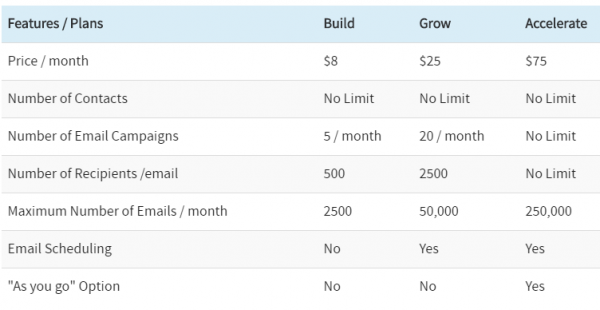
Weebly Email Marketing Solution: Weebly Promote Pricing

Prices are subject to change by Weebly at anytime.

Weebly Promote Pricing

Weebly Promote: How to Use It?

Weebly Promote can be accessed with the following URL: Weebly Promote.

Before sending your first newsletter, you must have at least one contact list. To create a new contact list, click on the Contact button.

Adding Contacts in Weebly Promote

Choose whatever option you’d like to add your contacts.

Weebly Promote Platform

Creating an Email Campaign

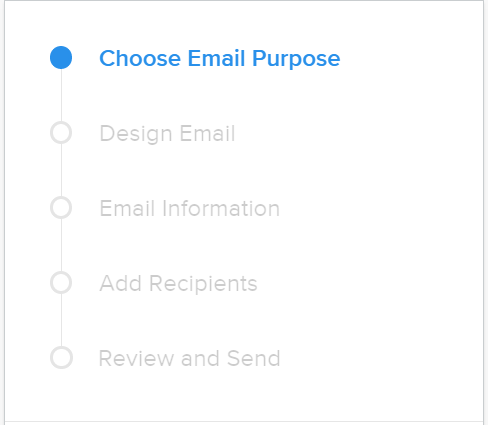
Once your list is ready, you can begin creating your campaign! Click on the “Compose” button and follow the step by process to create an email campaign

Sending compaigns

You have five sections to go through:

  1. Choose Email Purpose
  2. Design Email
  3. Email Information
  4. Add Recipients
  5. Review and Send

Monitoring Performance

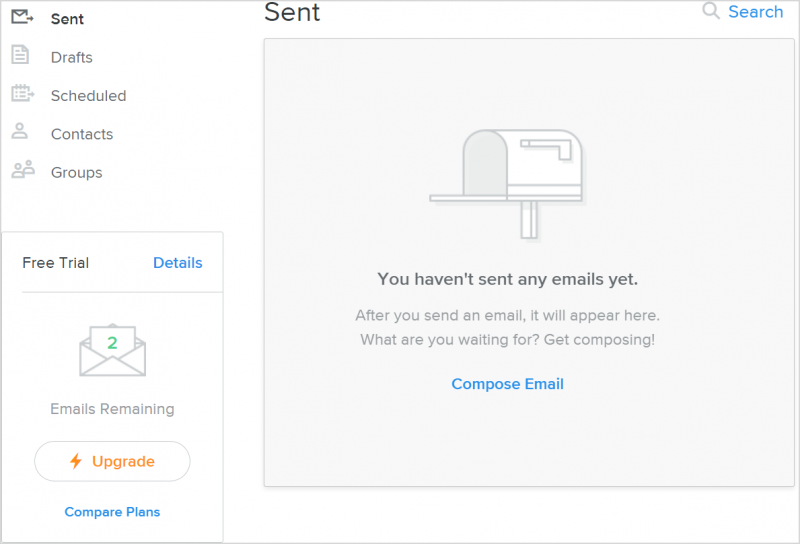
Once a campaign is sent to the desired contact list, the performance of the campaign can be checked under “Sent” tab.

Suggested Read: Add a Newsletter Signup Form to your Weebly Website

If you liked this in-depth Weebly vs WordPress comparison, then you may consider subscribing to our WeeblyTutorials YouTube Channel for Weebly video tutorials. You can also find us on Twitter and Facebook.

Adding or Updating Weebly’s Store Information

This article explains how to add or update your Weebly’s store information.


Adding or Updating Weebly’s Store Information

To do so, you must first navigate to your Weebly site’s store editor.

  1. In the Add Store Information section, hit Add Information.
  2. For each of the following sections, hit the Edit button in the top right-hand corner and add or update the needed information.

Store Information

Weebly Store Information

Related: How to Add a Product Category to your Weebly Store

General

Weebly Store Information

Layout

Weebly Store Layout

Tracking

Tracking

The next step is to add products to your Weebly store. Here is how to add products in Weebly.

If you liked this tutorial, then you may consider subscribing to our WeeblyTutorials YouTube Channel for Weebly video tutorials. You can also find us on Twitter and Facebook.

Add products in Weebly store

How to Add Products in your Weebly Store

The actual tutorial explains how to add products to your Weebly Store. Adding products would allow you to have a fully functional Weebly store so you can start selling your items.


How to Add Products in your Weebly Store

To do so, you must first navigate to your Weebly site’s store editor.

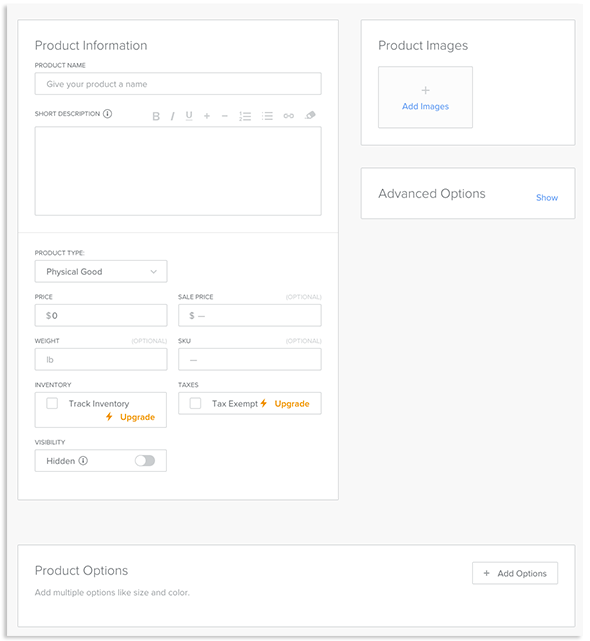
  1. Click Items then click +Add Products.
  2. Input information for your product.
    • Product Information: Enter general information about the product here.
    • Product Options: Click +Add Options to add options to the product.
    • Product Images: Click Add Images to upload a product image to go with the product.
    • Advanced Options: Click Show to display SEO options.

Add products in Weebly store

Related: How to Create an Online Store with Weebly

If you liked this tutorial, then you may consider subscribing to our WeeblyTutorials YouTube Channel for Weebly video tutorials. You can also find us on Twitter and Facebook.